Showing posts with label launcher. Show all posts

Wednesday, July 25, 2018

Steam: Newest Update = How To Be In "Offline" Mode In The Friends List (Like It Used To Be) Is it Gone? [Notification, Tutorial]

Update 2018.08.01: Steam has recently been Updated to include "Do Not Disturb" and "Offline" settings, which coincides with many of the below concepts [as users have asked for them - wtg Valve!]. More details at the Official Steam News Posting, here.


For those using Steam (the gaming/client/launcher interface by Valve - creators of games like the Half-Life, Team Fortress 2 and DOTA 2), you may have had an update recently that made your Friends List appear without you asking it to - and where you seemed to be immediately ONLINE - a virtual version of waking up in a classroom with no clothes on [not ready for it, as in a bad dream..].

Within minutes, I saw a Discussion Thread in the Steam Forums asking how to "be in offline mode" - which is how it used to be; you could set in the Options/Settings, "Appear In Offline Mode" when starting the Friends portion of the Steam client [I was going to the forum to ask myself, as I have an illness that makes me tired easily, preventing me from chatting with friends as much as I would like - and I don't want to appear cold or ignoring of them, so I usually utilize any 'Offline Mode' options in Friends clients].

I looked around in the Settings and configuration of the new Friends List and quickly figured out how to make the Friends portion of the interface 'act' like it used to - that is, how to 'appear offline' to friends in the list, when running Steam [and not get gameplay interrupted with any notifications, that is found further below]. Here is all you have to do:

» Set to INVISIBLE (pull-down menu "v" next to name)

[Stays through Steam restart, when restarting your PC/Steam, it will start up in Invisible Mode]
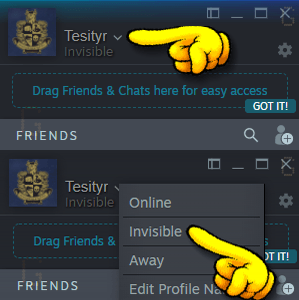
[Tutorial GIF] Showing where and how to use the pull-down menu option in the new Friends List
in Steam to appear 'offline' (termed "Invisible" in the new Friends List version)

That's it!

Now you can still enjoy your games and 'not be forced to interact' with your Friends on your List [no matter what your personal reason(s) may be..]. HTH


Addendum I:
I wanted to add that although the terminology has changed, the functionality remains the same; that is, you can still 'hide' yourself from everyone and not see any messages or notifications, until you specifically want to, opening the Friends portion of the Steam Client, and looking at your Messages. Here, for example, is the Notification Settings to apply, if you do NOT want to be notified when Friends come Online or send you Messages - combined with the above "Invisible" setting, it will function exactly as before - you will be 'greyed out' on their end(s) and it will just show when you were "Last Online", and if they send you Messages, they will be kept on your end but nothing will pop-up/sound to let you know that the Message arrived:

Example of the settings for the Notifications, where with the settings above, you will not have anything interrupting you as you play (no sounds, no pop-ups, nothing). Together with setting yourself as "Invisible", it is functionally the same as "Offline Mode" before, in the older Steam Client. Access the Friends List Settings by clicking on the Gear icon in the main Friends List window (Click to see Full Size)

Addendum II:
Doing some further testing, I wanted to add that the Website/Browser functionality operates in the same manner as the stand-alone Steam client. That is, you can set yourself to "Invisible" and it will act as "Offline" did in the past (you will be 'greyed out' on your Friends' Lists). You have the same Notification options as the above example image as well (minus the Steam-Client-specific 'window flashing' buttons) - the interface even looks the same (colour and button/link locations), which is always good for user-friendliness...

Note: You will be set to "Online" the very first time that you open the Web/Browser version of the Friends List (eg. clicking on the Envelope>XunreadChatMessage at a Steam webpage) - but once you set yourself to "Invisible" in the Browser portion/window, it remains that way if you close the Friends window and open it up again. I even tested closing the browser (Chrome) entirely, waiting a while, then opening up a Steam website, then the browser-based Friends List - although I remained 'logged in', I was still 'Invisible' in the Friends List window/page when I restarted Chrome.


I want to say a quick Thank You to Steam/Valve for allowing those that don't wish to be Visible all the time [and/or those that have illnesses that prevent them from using this portion of the client well/properly/astheydesireto], to still remain "offline" to Friends - not all companies would maintain this level of user option/satisfaction.
I realize it is more difficult these days, as studies have shown that if customers/players can have multiple facets of interaction (text, chat, voice, etc) it 'solidifies' them as players/customers, maintaining them longer [than if there were not these channels of interaction]. This correlation is so pervasive, that Live Voice Chat seems to be 'making a comeback' from the abandoned, garbage-filled-alleyways of the 1990's, with Stand-Alone clients and chat-only options popping up recently [as of the time of this post].
Anyway, Thank You, Valve. Thank you for continuing to allow these options to your users/players.
~T

Thursday, February 22, 2018

It's Not Just You™ - Paladins (Beta), Having Issues Not Starting or Not Running In 64-bit Mode, Battlegrounds [Notification, Updated As Encountered]

[Currently, this post is mostly in Text-Only Mode, to speed up the ability to publish it... 
I may return to add some Images and/or Screenshots in the future.
This post will be Updated for the next few days, as I encounter new related information.]


If you are trying to play the newest addition to Paladins, Battlegrounds, which is being released in Alpha Testing Stage in their Latest Update - and you are having issues with either (1) the game not launching/starting or (2) the game running in 32-bit mode [which stops you from being able to enter the Battlegrounds, which requires 64-bit mode] - just letting you know, It's Not Just You™...

For the past little while, I have been trying to get into Paladins and try out this new Game Mode, and take a look at any new changes; but I have been running into multiple issues with the game itself. If related Paladins Forums 'everywhere' (Steam, Reddit, Official Forums, etc) are any indication, many, many others are having issues as well.

I wanted to take a moment to make this posting because, even though it seems there are a few people that have 'gotten it running', there are many others, like me, that have not. I wanted to share this experience and related information, so that others may know that, well... It's Not Just Them.

Since I have run into multiple issues and have tries multiple steps so far, I will share them here in Point Form as a list:


Issues Seen/Encountered:


  • Game not starting [Launcher will start, but game itself will not show up]
  • Game not stopping [Game will not Terminate, Steam says it is Running still, but it is not, or has not started]
  • Game not running in 64-bit mode [Game starts in 32-bit Mode and therefore The Battlegrounds can not be tested/run, as it states in-game "64-bit Mode Required"]
  • Cannot Verify Integrity Of Game Files, via Steam [Steam states to 'exit any game files or tools' related to the game, but none are running]


Steps Taken/Tried:


  • Put "-Use64" [without quotes] into Optional Game Command Line Parameters (Options/Commands) in Launcher
  • Put "-dx11" [without quotes] into Optional Game Command Line Parameters (Options/Commands) in Launcher
  • Checked "Use 64 bit Client" in Launcher Options [this has never been 'unchecked' by me]
  • Verified Cache ['double-checked' the game files through Steam, to see if they are what they are supposed to be]


Unfortunately, since I cannot make the game 'run in 64-bit Mode and enter The Battlegrounds' in a repeated a reliable manner - I cannot make a section containing a 'Fix' at this time... I will continue to observe various Forums and Support Responses, try various Suggested Steps (from the Developers and other helpful Paladin Players (there are a lot of them out there!)), and see if I can make any progress that results in stable and repeatable game launching and gameplay. If I do, I will return here and add it as a 'Fix' section. 

For now, despite them not working for me/on my system, there are a few isolated people that have had success with some of the Steps listed. If you are experiencing any of these issues with Paladins at this time, try some or all of them above. Perhaps one of them will work for you, too. 

Good Luck with it - and try to stay positive, remembering - It's Not Just You™!

Wednesday, January 31, 2018

The Elder Scrolls Online - "PatchManifestError" In TESO Launcher [Workaround]


[Text-Only - This post is initially Text-Only, to allow posting this as fast as possible, to help others.
I may return and add additional graphics/screenshots pertaining to the article... Soon™]


Just now, I ran into an issue starting up TESO, where the Launcher gave an error message - oddly, it was slightly different than the message my Gamer Wife beside me got - one of us got "Error 210" while the other got "Error 206". Here is an example of what the Error Message within the TESO Client Launcher looks like:


Popping into the Steam forum and the Official Bethesda/Zenimax Forum for the game, I saw a number of people mentioning they are getting this too, just today, like me. So, I wanted to come here and post a 'quick fix' that can get past the error message and allow fellow gamers, like me, to be able to play the game as quickly as right now, tonight [actually it's more of a 'workaround' than a true 'fix', as it doesn't solve whatever issue is happening with the Launcher/Client/Servers... I will post this as a "Workaround"].

Similar to an earlier issue with the TESO Launcher I talked about here at The Blog, the 'workaround' involves bypassing the Launcher itself and starting up the game manually via the Executable files... The instructions to do this are below.


For the Steam Version of TESO:
  • Open Steam
  • Right-Click on TESO in the Library and choose Properties
  • Click on the "Local Files" tab
  • Click on the "Browse Local Files" button to show the directory/folder of the game
  • Navigate into THE ELDER SCROLLS ONLINE > GAME > CLIENT folder
  • Double-Click on "eso64.exe" to launch the game (or "eso.exe" if running 32-bit Windows/Game

For the Standalone Version of TESO:
  • Right-Click on the Shortcut (the icon that runs the game) on the Desktop (or in the Start Menu) for TESO and choose Properties
  • Click on the "Open File Location" button in the Properties of the game shortcut
  • You should find yourself in a Windows Explorer windows, looking at the "Launcher" folder of Zenimax Online
  • Go up one folder level to "Zenimax Online" (click on the Zenimax Online folder in Explorer)
  • Navigate into THE ELDER SCROLLS ONLINE > GAME > CLIENT folder
  • Double-Click on "eso64.exe" to launch the game (or "eso.exe" if running 32-bit Windows/Game)

That's it! Now the game should start up and you will just have to Login within the game itself.


Unfortunately, I do not know what has caused this error, and I have not seen any Official Postings by Bethesda/Zenimax to explain it, as of the time of this writing. Although it appears to be some sort of Server/Launcher error, I cannot say specifically at this time. However, having testing this Workaround on different machines and with both the Steam Version of TESO and the Standalone/Web version of TESO, I can safely say that this should work for you, fellow gamer.


Hopefully that helps - and See You In The Game!

Sunday, July 16, 2017

It's Not Just You™ - GTAV Launcher Crashing Right After Starting? Here's What Worked For Me... [Notification]

Just a quick notification about GTAV (Grand Theft Auto Five) and how it seems to be crashing after the Launcher downloads an Update of some sort (and after looking it up a bit online, it looks like it's not just me). I'll quickly share some Tips I found from others and which one worked for me in the end - if your GTAV Launcher is crashing every time you try to play the game - don't worry, It's Not Just You™...

The thing that was happening.... oh I don't know maybe
EVERY SINGLE TIME I TRIED TO START THE GAME

Things I tried:

  1. Rebooting
  2. Copying d3d9.dll (eventually trying all of the d3d Libraries, copied to the game folder)
  3. Updating GPU Drivers and Windows Updates (all was Latest already)
  4. Updating RTSS (Rivatuner Statistics Server to Version 7.0.0 (Beta), part of MSI Afterburner)
  5. Download latest Social Club installer and (Re)Install (to the same Location I had it already)


Saturday, June 18, 2016

It's Not Just You™ - Battle.Net Issues with Logging In and Updates The Past Few Days [Notification]


Just a quick post to let others know that I am having issues logging in to Battle.Net - well, I don't mean 'just me', sorry, I mean "me too" - as in, lots of people have been having problems the last few days, as seen in places like:

http://downdetector.com/status/battle-net/map/

and

https://twitter.com/BlizzardCS


The Battle.Net Launcher [agent.exe] just kept 'trying' to log in... forever.

Logging in... forever


Eventually it told me that I could only play Offline (error 3801 in my case). It also gave a link to the Battle.Net website for the error (a link is put in the Launcher after it can't connect) which directs you here:

https://us.battle.net/support/en/article/BLZBNTBGS80000011

This seems to be a 'generic' error of "we might be under maintenance but we don't really know"


Once I finally got logged in to the Launcher, it got stuck doing "updates"... Finally, after quite a while, it now seems to be able to function fully - I can open Hearthstone or World of Warcraft, for example - and play those now.

Just letting you know that if you are experiencing problems with Battle.Net, the Blizzard Launcher or their games over the weekend - It's Not Just You™... and once it gets working for you - See You In The Game!


Saturday, February 14, 2015

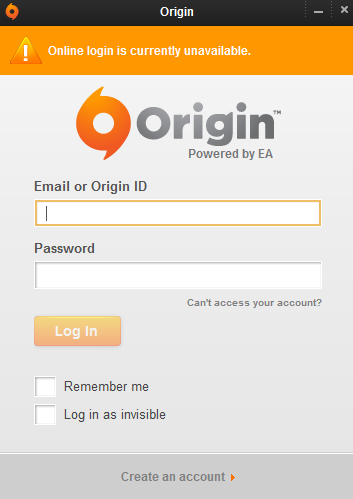
Origin - In Offline Mode, Online Login Is Currently Unavailable (It's Not Just You)


Update (11:11 UTC/Zulu): EA is investigating the issue(s) - way to go EA!
Update (11:34 UTC/Zulu): Everything Is Coming Up Roses here now (in Canada, eh). I hope it does soon for you too, my friends.


Just a quick post to let you know, if you are experiencing this around 10:00-11:00 hours UTC/Zulu Time on February 14th, 2015 - it's not just you. Origin (EA) seems to be having problems for everybody... I guess I won't be seeing you in the game right now /sadface


Tuesday, September 16, 2014

Quick Tip: Archeage Stuck On "Applying"... [FIX]


Happy Launch Day To All Archeageans! [I'm not sure what they would be called... I'm just going to use that word I made up just now, and hope it doesn't offend any of them] Just a Quick Tip to all players of Archeage, especially those of you trying to install or patch the game through Trion's Launcher application and finding it stuck on "Applying..." and your hard drive going crazy, for literally hours on end if allowed to, with no seeming progress - here's one thing that could be causing this:


Applying... Forever


Long Version


While updating Archeage through Trion's game launcher, Glyph, my computer seemed to be almost 'locked up', just sitting there, the progress bar not moving at all. All it said was: "Applying.." and it didn't seem to be making any progress - but my hard drive light was almost solid, it was so darn busy... So, I did a little poking around, and here are some things I found:

Microsoft's Resource Monitor, showing that the CPU usage of Microsoft's Security Essentials executable (MsMpEnd.exe) is not using up much CPU (top set of two green arrows); but it is using up most of the throughput of the hard drive (bottom set of two green arrows). Click to see Full Size

Opening the built-into-Windows Resource Monitor, to see what could be keeping Windows so busy, I saw that the executable MSMPENG.EXE was going crazy. It wasn't hogging the CPU in usage, it was constantly accessing the hard drive, but the drive didn't seem to have problems (the response time was ok, etc) - so that indicates that it probably wasn't the hard drive's fault. Since MsMpEng.exe is part of the Windows Anti-Spyware/Anti-Virus utilities (Windows Defender/Microsoft Security Essentials/etc) I wondered if it was scanning some huge patch/update file that the game was trying to use. 


Windows Explorer, showing the large temporary files that Glyph/Archeage is creating, which seem to be causing problems with Microsoft's Security Essentials. Click to see Full Size

A quick trip to the Temporary Folder of Windows later... and there it was: a few large files, one of them 15GB alone. Well, no wonder everything seems like it is locking up solid. I made the choice to trust Trion, that they weren't doing anything untoward on my system, that they were merely trying to patch their game, and I temporarily disabled Microsoft Security Essentials, which I had installed on my computer. 

Microsoft Security Essentials, showing where to go to Disable the Real-Time Protection (temporarily), so that the Archeage patching done in Trion's Glyph game launcher can continue and complete. Click to see Full Size

'Et Voila' ["And There It Is"]... everything was working again, the patch completes in mere seconds and the game started up... 


Short Version


Part of how the Trion's game launcher Glyph appears to be set up is, it will patch/update Archeage by creating huge temporary files, which at least one virus scanner (Microsoft Security Essentials) chews and chews on forever (scanning the large files slowly). This gives the appearance that 'nothing is happening'. Disabling your anti-virus [in my case, I was running MSE] temporarily, should allow the patch to continue and the game should start soon after...

In my mind, the button wasn't saying "OK" anymore.


While this fix [more of a workaround really, until Trion and/or Anti-Virus Software companies actually fix whatever is causing the problem] is somewhat of a security risk (disabling any security on your system always is), it does appear to solve the issue and allow the patching to continue and the game to run. As long as Trion isn't trying anything 'funny' - which I doubt they would, as it would negatively affect their publicity and possible future income - then disabling your own anti-virus protection, for this one purpose, should be ok [sorry Trion, 'it's not you ..it's me', I am just cautious towards telling others to disable any Security their systems may have]. In the end, I hope it works for you all, as it did for me.


Have fun playing Archeage and See You In The Game!

Saturday, August 23, 2014

It's A Busy Day For Battle.net! (Can't Login To Battlenet Authentication Application Launcher ...Thingy) [Workaround]


Estimated Queue Time: Almost 10 Hours. Hey, I could go to sleep! It's not such a bad thing after all


Just a quick post to let you know, if you are experiencing this right now, that you are not alone. Not by a long shot. Some even have a theory. Even though I am sure this issue will spark another set of debates in forums about 'Always Online Games Versus Offline Games', try not to fret "too much", as Blizzard knows about it and is hard at work on the Blizzard Servers as we speak.

Proof*:
[I can't stop laughing at the jacket ahaha it turned out great]


Hopefully they will fix it Soon™...


Meanwhile, this is a good time to empty out your bathroom bottles at your desk, take the dog for a walk or feed it, take a shower, do some laundry, and many more things that may have been neglected lately due to heavy gaming. In a way, whatever is the cause of this, it is doing us a 'helpful distraction' public service! Sort of. Don't worry, you'll be back Online and Gaming again in no time.

A couple of things you can try for now as Workarounds are: don't use the Battle.Net Launcher/App to Login to your game's account, use the .EXE file that launches the game directly. Then, when it opens up, simply log in there in the game's Main Menu. This seems to work fine.
You can also try going Offline in the Battle.Net Launcher and still be able to hit Play for the game you want to launch, then log in at the game's Main Menu [which is essentially the same as the first Workaround, but saves you the trouble of taking the time to go and locate and execute the game's startup file] - this second way of doing the above was found at the Battle.Net forums, shared by Telkari, here.
If neither of these work for you right now, I just got in to the Battle.Net Launcher, far under the estimated time of queue. Hopefully this will happen to you, too.


See You In The Games!


[UPDATE»»» I was playing D3 using my above method (the first one) to log in... but I tried switching to Hearthstone just now - and it did not work for it...]


*Image Disclaimer: The picture used above was created for parody/satire and is only presented for [very] slight comedic effect. No copyright infringement or defamatory inclination in any form was intended and cannot be inferred. I personally support Blizzard Entertainment Inc. financially as a customer and have done so for many years through my past game purchases/licenses and have been a loyal subscriber for many years intermittently for their always exceptional products and support. This image was merely an attempt at humor and no ill will was meant to Blizzard Entertainment, it's employees, affiliates or partners, in any degrees of association. The picture is not to be utilized as a substitute for medical attention.