Update 2018.08.01: Steam has recently been Updated to include "Do Not Disturb" and "Offline" settings, which coincides with many of the below concepts [as users have asked for them - wtg Valve!]. More details at the Official Steam News Posting, here.
For those using Steam (the gaming/client/launcher interface by Valve - creators of games like the
Half-Life,
Team Fortress 2 and
DOTA 2), you may have had an update recently that made your Friends List appear without you asking it to - and where you seemed to be immediately ONLINE - a virtual version of waking up in a classroom with no clothes on [not ready for it, as in a bad dream..].
Within minutes, I saw a Discussion Thread in the Steam Forums asking how to "be in offline mode" - which is how it used to be; you could set in the Options/Settings, "Appear In Offline Mode" when starting the Friends portion of the Steam client [I was going to the forum to ask myself, as I have an illness that makes me tired easily, preventing me from chatting with friends as much as I would like - and I don't want to appear cold or ignoring of them, so I usually utilize any 'Offline Mode' options in Friends clients].
I looked around in the Settings and configuration of the new Friends List and quickly figured out how to make the Friends portion of the interface 'act' like it used to - that is, how to 'appear offline' to friends in the list, when running Steam [and not get gameplay interrupted with any notifications, that is found further below]. Here is all you have to do:
» Set to INVISIBLE (pull-down menu "v" next to name)
[Stays through Steam restart, when restarting your PC/Steam, it will start up in Invisible Mode]
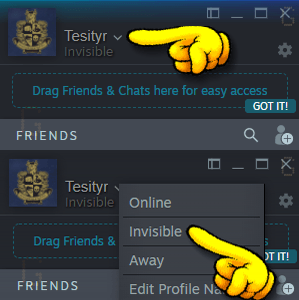 |
[Tutorial GIF] Showing where and how to use the pull-down menu option in the new Friends List
in Steam to appear 'offline' (termed "Invisible" in the new Friends List version) |
That's it!
Now you can still enjoy your games and 'not be forced to interact' with your Friends on your List [no matter what your personal reason(s) may be..]. HTH
Addendum I:
I wanted to add that although the terminology has changed, the functionality remains the same; that is, you can still 'hide' yourself from everyone and not see any messages or notifications, until you specifically want to, opening the Friends portion of the Steam Client, and looking at your Messages. Here, for example, is the Notification Settings to apply, if you do NOT want to be notified when Friends come Online or send you Messages - combined with the above "Invisible" setting, it will function exactly as before - you will be 'greyed out' on their end(s) and it will just show when you were "Last Online", and if they send you Messages, they will be kept on your end but nothing will pop-up/sound to let you know that the Message arrived:
 |
| Example of the settings for the Notifications, where with the settings above, you will not have anything interrupting you as you play (no sounds, no pop-ups, nothing). Together with setting yourself as "Invisible", it is functionally the same as "Offline Mode" before, in the older Steam Client. Access the Friends List Settings by clicking on the Gear icon in the main Friends List window (Click to see Full Size) |
Addendum II:
Doing some further testing, I wanted to add that the Website/Browser functionality operates in the same manner as the stand-alone Steam client. That is, you can set yourself to "Invisible" and it will act as "Offline" did in the past (you will be 'greyed out' on your Friends' Lists). You have the same Notification options as the above example image as well (minus the Steam-Client-specific 'window flashing' buttons) - the interface even looks the same (colour and button/link locations), which is always good for user-friendliness...
Note: You will be set to "Online" the very first time that you open the Web/Browser version of the Friends List (eg. clicking on the Envelope>XunreadChatMessage at a Steam webpage) - but once you set yourself to "Invisible" in the Browser portion/window, it remains that way if you close the Friends window and open it up again. I even tested closing the browser (Chrome) entirely, waiting a while, then opening up a Steam website, then the browser-based Friends List - although I remained 'logged in', I was still 'Invisible' in the Friends List window/page when I restarted Chrome.
I want to say a quick Thank You to Steam/Valve for allowing those that don't wish to be Visible all the time [and/or those that have illnesses that prevent them from using this portion of the client well/properly/astheydesireto], to still remain "offline" to Friends - not all companies would maintain this level of user option/satisfaction.
I realize it is more difficult these days, as studies have shown that if customers/players can have multiple facets of interaction (text, chat, voice, etc) it 'solidifies' them as players/customers, maintaining them longer [than if there were not these channels of interaction]. This correlation is so pervasive, that Live Voice Chat seems to be 'making a comeback' from the abandoned, garbage-filled-alleyways of the 1990's, with Stand-Alone clients and chat-only options popping up recently [as of the time of this post].
Anyway, Thank You, Valve. Thank you for continuing to allow these options to your users/players.
~T


