Showing posts with label help. Show all posts

Friday, August 30, 2019

No Man's Sky 'Not Starting' or 'Failing To Launch'? - Here's What Worked For Me [Notification/Tutorial]

[Text-Mode Only: This posting is being shared as Text-Only, to speed up the ability to share it, at this time. 
I may return to add helpful screenshots/diagrams/etc, at a later date.]


Update 1: Added link to driver download, for the version that worked for me (NVIDIA website)
Update 2: Oddly, the GOG version was working - but as of 09.02 neither game starts up at all


For the past week or so (since the BEYOND release) I've had a problem trying to get back into No Man's Sky to check it out... The game just wouldn't start/launch. I noticed that it was popping up in the Windows Taskbar but then it would 'close itself' or 'crash' - either way, resulting in the game closing up and I wasn't able to play and try out the new stuff!

After messing with it off and on for about a week, I finally figured out something that worked - No Man's Sky actually starts now, and I can play! Here are the things I tried at first:

  • Restarted PC/system
  • Re-installed NMS
  • Verified Cache (Steam version**)
  • Disabled Anti-Virus temporarily while running game (third-party AV, Windows Defender, etc)
  • Ran game as Administrator
  • Ran the Compatibility Troubleshooter for the game executable (Windows 10, did not affect result of game closing itself upon starting it)
  • Dusted out system and hardware (to help with potential overheating, corruption/errors due to heat and dust issues, etc)
  • Re-installed NMS to C: drive (Windows/main drive/partition, then moved NMS back to other SSD [I had it originally on], as it made no difference)
  • Re-installed GPU drivers (videocard 'system files that Windows uses to 'talk' to the hardware' [is how I describe "computer drivers" to others])
  • Ran Windows Update (there was an Update package, did not affect result of game closing itself)
  • Considered re-installing Windows 10 (then did not do it - this time - lol)

I tried a ton of other little things as well, like re-installing Visual C++ libraries for Windows (system files that are part of Windows that many, many programs utilize) - it had apparently worked for many people, and I saw this mentioned in a few different Game Support forums (eg. Reddit, Steam, GameFaqs, etc) if you want to try this, these can be found at the Microsoft website, here:

With all of these steps (many of them mentioned by helpful users on multiple forums online - most of them I knew and tried myself), at some point, they would 'get the game working' for many people. Sadly, not for me. I had to hunt around and 'hack away at the bushes of the problem jungle' on my own for awhile... Finally, I found something that got No Man's Sky working for me - here is what I did:

'Roll back' the GPU drivers (videocard system files that Windows uses to 'talk' to the hardware) to an older version, then re-install the latest version of the GPU drivers (non-'clean' install). BOOM it worked! 

Here is the steps I took that finally got No Man's Sky working:

  • Regress the GPU drivers [re-install older and older versions of the GPU drivers] until the game works (for me, that meant I re-installed older drivers over and over until NMS started 'fully and without issues' - for me, that was NVIDIA GPU Driver version 391.01 - this driver can be downloaded directly from NVIDIA's website, however, their own Search for Drivers does not go back that far... I found these older versions by going to Google and searching "NVIDIA driver 391", for example, then following a Link that goes to NVIDIA's Driver website [as opposed to other third-party websites, not that they are always 'bad', some are great, but I wanted the official NVIDIA drivers from them, for this]). If you want to try the exact version I found worked for me, the link to NVIDIA's release of that Driver is here:
    https://www.nvidia.com/download/driverResults.aspx/131443/en-us
  • Once game is verified as 'working without issues', re-install latest GPU Driver (version 436.xx as of the time of this posting) 'on top of' the currently installed Drivers [newer versions of NVIDIA Drivers 'uninstall' the older versions, but just do not chose the 'clean' install, where it deletes your Profiles, etc]. I found I also had to select to install the "NVIDIA HD Audio" and "NVIDIA 3D" options, as well...

That's it!

Although professionally I am a Computer Tech, I'm not a Developer/Programmer, so I'm not 100% sure why it got No Man's Sky working finally (but I can assume some things, like the game needing some older Windows System libraries that got 'corrupted' or lost, somehow, and other things that could have occurred) - but I'm just glad that the game runs once again. 

Of course, this may not be your specific issue with NMS not starting for you, my dear reader; but perhaps it can help the game to run for you, too. Good Luck with it - and a many-a-Good-Journey to you, Traveller! 


Addendum: As of 09.02, both versions (GOG and Steam) now do not start up (they do not run properly) - the game appears in the Taskbar for a moment, then closes itself. I shall try some Troubleshooting again, and if I find another 'fix', I will return to share it here...


**Oddly, the Good Old Games (now GOG.com) version, that I received as a gift a while ago, worked fine... Only the Steam version of NMS had issues... During the course of Troubleshooting the Steam version, the GOG version stopped working [lol] - then, after 'fixing' the Steam version, the GOG version was working once again. Possibly, the issues were related, but I am not sure. Hopefully, one of the steps mentioned herein (or my 'final solution' step [maybe I should rename that]) will work for you


Wednesday, July 25, 2018

Steam: Newest Update = How To Be In "Offline" Mode In The Friends List (Like It Used To Be) Is it Gone? [Notification, Tutorial]

Update 2018.08.01: Steam has recently been Updated to include "Do Not Disturb" and "Offline" settings, which coincides with many of the below concepts [as users have asked for them - wtg Valve!]. More details at the Official Steam News Posting, here.


For those using Steam (the gaming/client/launcher interface by Valve - creators of games like the Half-Life, Team Fortress 2 and DOTA 2), you may have had an update recently that made your Friends List appear without you asking it to - and where you seemed to be immediately ONLINE - a virtual version of waking up in a classroom with no clothes on [not ready for it, as in a bad dream..].

Within minutes, I saw a Discussion Thread in the Steam Forums asking how to "be in offline mode" - which is how it used to be; you could set in the Options/Settings, "Appear In Offline Mode" when starting the Friends portion of the Steam client [I was going to the forum to ask myself, as I have an illness that makes me tired easily, preventing me from chatting with friends as much as I would like - and I don't want to appear cold or ignoring of them, so I usually utilize any 'Offline Mode' options in Friends clients].

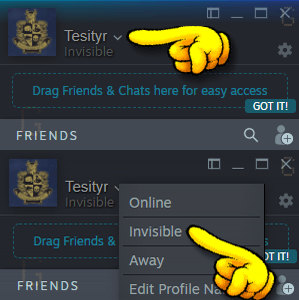
I looked around in the Settings and configuration of the new Friends List and quickly figured out how to make the Friends portion of the interface 'act' like it used to - that is, how to 'appear offline' to friends in the list, when running Steam [and not get gameplay interrupted with any notifications, that is found further below]. Here is all you have to do:

» Set to INVISIBLE (pull-down menu "v" next to name)

[Stays through Steam restart, when restarting your PC/Steam, it will start up in Invisible Mode]

[Tutorial GIF] Showing where and how to use the pull-down menu option in the new Friends List
in Steam to appear 'offline' (termed "Invisible" in the new Friends List version)

That's it!

Now you can still enjoy your games and 'not be forced to interact' with your Friends on your List [no matter what your personal reason(s) may be..]. HTH


Addendum I:
I wanted to add that although the terminology has changed, the functionality remains the same; that is, you can still 'hide' yourself from everyone and not see any messages or notifications, until you specifically want to, opening the Friends portion of the Steam Client, and looking at your Messages. Here, for example, is the Notification Settings to apply, if you do NOT want to be notified when Friends come Online or send you Messages - combined with the above "Invisible" setting, it will function exactly as before - you will be 'greyed out' on their end(s) and it will just show when you were "Last Online", and if they send you Messages, they will be kept on your end but nothing will pop-up/sound to let you know that the Message arrived:

Example of the settings for the Notifications, where with the settings above, you will not have anything interrupting you as you play (no sounds, no pop-ups, nothing). Together with setting yourself as "Invisible", it is functionally the same as "Offline Mode" before, in the older Steam Client. Access the Friends List Settings by clicking on the Gear icon in the main Friends List window (Click to see Full Size)

Addendum II:
Doing some further testing, I wanted to add that the Website/Browser functionality operates in the same manner as the stand-alone Steam client. That is, you can set yourself to "Invisible" and it will act as "Offline" did in the past (you will be 'greyed out' on your Friends' Lists). You have the same Notification options as the above example image as well (minus the Steam-Client-specific 'window flashing' buttons) - the interface even looks the same (colour and button/link locations), which is always good for user-friendliness...

Note: You will be set to "Online" the very first time that you open the Web/Browser version of the Friends List (eg. clicking on the Envelope>XunreadChatMessage at a Steam webpage) - but once you set yourself to "Invisible" in the Browser portion/window, it remains that way if you close the Friends window and open it up again. I even tested closing the browser (Chrome) entirely, waiting a while, then opening up a Steam website, then the browser-based Friends List - although I remained 'logged in', I was still 'Invisible' in the Friends List window/page when I restarted Chrome.


I want to say a quick Thank You to Steam/Valve for allowing those that don't wish to be Visible all the time [and/or those that have illnesses that prevent them from using this portion of the client well/properly/astheydesireto], to still remain "offline" to Friends - not all companies would maintain this level of user option/satisfaction.
I realize it is more difficult these days, as studies have shown that if customers/players can have multiple facets of interaction (text, chat, voice, etc) it 'solidifies' them as players/customers, maintaining them longer [than if there were not these channels of interaction]. This correlation is so pervasive, that Live Voice Chat seems to be 'making a comeback' from the abandoned, garbage-filled-alleyways of the 1990's, with Stand-Alone clients and chat-only options popping up recently [as of the time of this post].
Anyway, Thank You, Valve. Thank you for continuing to allow these options to your users/players.
~T

Wednesday, January 31, 2018

The Elder Scrolls Online - "PatchManifestError" In TESO Launcher [Workaround]


[Text-Only - This post is initially Text-Only, to allow posting this as fast as possible, to help others.
I may return and add additional graphics/screenshots pertaining to the article... Soon™]


Just now, I ran into an issue starting up TESO, where the Launcher gave an error message - oddly, it was slightly different than the message my Gamer Wife beside me got - one of us got "Error 210" while the other got "Error 206". Here is an example of what the Error Message within the TESO Client Launcher looks like:


Popping into the Steam forum and the Official Bethesda/Zenimax Forum for the game, I saw a number of people mentioning they are getting this too, just today, like me. So, I wanted to come here and post a 'quick fix' that can get past the error message and allow fellow gamers, like me, to be able to play the game as quickly as right now, tonight [actually it's more of a 'workaround' than a true 'fix', as it doesn't solve whatever issue is happening with the Launcher/Client/Servers... I will post this as a "Workaround"].

Similar to an earlier issue with the TESO Launcher I talked about here at The Blog, the 'workaround' involves bypassing the Launcher itself and starting up the game manually via the Executable files... The instructions to do this are below.


For the Steam Version of TESO:
  • Open Steam
  • Right-Click on TESO in the Library and choose Properties
  • Click on the "Local Files" tab
  • Click on the "Browse Local Files" button to show the directory/folder of the game
  • Navigate into THE ELDER SCROLLS ONLINE > GAME > CLIENT folder
  • Double-Click on "eso64.exe" to launch the game (or "eso.exe" if running 32-bit Windows/Game

For the Standalone Version of TESO:
  • Right-Click on the Shortcut (the icon that runs the game) on the Desktop (or in the Start Menu) for TESO and choose Properties
  • Click on the "Open File Location" button in the Properties of the game shortcut
  • You should find yourself in a Windows Explorer windows, looking at the "Launcher" folder of Zenimax Online
  • Go up one folder level to "Zenimax Online" (click on the Zenimax Online folder in Explorer)
  • Navigate into THE ELDER SCROLLS ONLINE > GAME > CLIENT folder
  • Double-Click on "eso64.exe" to launch the game (or "eso.exe" if running 32-bit Windows/Game)

That's it! Now the game should start up and you will just have to Login within the game itself.


Unfortunately, I do not know what has caused this error, and I have not seen any Official Postings by Bethesda/Zenimax to explain it, as of the time of this writing. Although it appears to be some sort of Server/Launcher error, I cannot say specifically at this time. However, having testing this Workaround on different machines and with both the Steam Version of TESO and the Standalone/Web version of TESO, I can safely say that this should work for you, fellow gamer.


Hopefully that helps - and See You In The Game!

Monday, November 27, 2017

Quick Tip: NVIDIA 'In Game Overlay' Stopped Working? Here's How To At Least Get It Going Again [Fix / Workaround That Might Work For Some, Updated 2018-04-26]


Whether it wants to be called Shadowplay, Share or [as of the time of this post] In-Game Overlay; it doesn't really matter to most people I think - we just look for something to record our gameplay once in a while, maybe take some Screenshots, 'and just work'. Thankfully, NVIDIA's In-Game Overlay [or whatever it may be called by the time I finish this post, heh] does just that. Most of the time.


Although I rotate between a handful of different recording programs off and on (such as Bandicam, Action, Playclaw and others - just for fun and also slowly working on another 'Game Recording Comparison' for the future), In-Game Overlay [built into the NVIDIA Drivers, aka "for free"] records when I want, it records a Buffered Loop (a timed, re-recording of 'the last xyz seconds', to save when needed) - and it even takes Screenshots and more. However, sometimes this big fella has just 'stopped working' lately. No saving Screenshots, no Recording, no Error Message, Nothing; and I wasn't sure why... After only a tiny bit of Troubleshooting, I quickly figured out how to at least 'get it going again' and I just wanted to share that here for you all, in a Quick Tip™.

To be honest [I always believe in being completely honest], I am still not sure why NVIDIA's In-Game Overlay stopped working - but I did figure out how to simply get it working again - and here's what I did:
  • Once I noticed the Overlay wasn't taking Screenshots, I looked to see if the Overlay itself or more of the (many) NVIDIA utilities were still running, in the Task Manager. They were. [The In Game Overlay's Executable is still called "NVIDIA Share.exe", btw]
  • Thinking that something might have gone wrong with the Overlay utility, I opened up NVIDIA's GeForce Experience.
  • In GFX [my accro.], I clicked on the 'gear' in the upper-right corner, "Settings".
  • In the Settings area, I clicked on the switch/toggle for In-Game Overlay.
  • Although it took longer than normal, it eventually turned Off. Clicking it again, it turned back On.
That's it! After those steps, the In-Game Overlay was working once again. Taking a Screenshot, for example, the notification from the Overlay came up, and the Screen was saved. It also started Recording again, without issue. Here is a 'Tutorial Image' of the steps to take:

Tutorial Image of what steps to take to 'restart' the NVIDIA In Game Overlay;
the recording utility built into the NVIDIA Drivers
(Click to see Full Size)


Although I do not have any details on why it failed, I still thought this short 'tip' would be helpful for people that might run into this ("shadowplay not recording" or "in-game overlay not taking screenshots", etc) - so I wanted to share it here. HTH!


...


Update, 2018-03-26: Just a quick Update, that as of March 2018, I have run into somewhat of an extension of this issue, where GFX is no longer responding to this simple 'toggle' of the In-Game Overlay... Doing so (which used to temporarily 'fix' the issue above), now merely results in an 'error' message box, stating "That Didn't Work. Try Restarting Your System.", which although polite, is not very informative as to what caused the error or what else can be attempted to isolate/troubleshoot the issue further:


Doing some more research online, I see many others running into this issue, as well as its' 'extension' here... However, there still is no absolute 'fix' for this problem yet [at least, none that is verifiable and repeatable, which I prefer to have as a qualification to my sharing it here as a "fix"] - therefore, I cannot say for certain what can be done to fix it, even though a wide range of things have somewhat worked for others (some early steps work, others must use further steps), such as:

  • Uninstalling/Reinstalling GeForce Experience
  • Installing an older version of GeForce Experience
  • Utilizing a third-party 'drivers uninstaller' to completely remove NVIDIA's GPU Drivers and Reinstall NVIDIA's GPU Drivers/GeForce Experience [AMD users can get a similar utility directly from AMD]
  • Reinstallation/Formatting of entire system (eg. Windows) and Reinstalling NVIDIA GPU Drivers and Reinstalling GeForce Experience

...


Update, 2018-04-26: Just another Update, that as of April 2018, I was looking at this issue once again [since it still occurs, where InGameOverlay/Share just 'stops working' randomly (for no apparent reason)] and found that NVIDIA has this exact symptom listed as an "Open Issue (Windows 10)" in their Driver Updates now (Change Log / Release Notes); which basically means it is 'a known issue', but that they do not have a fix/patch at this time. This was found in the Release Notes for NVIDIA GPU Driver version 397.31, found here:

(USA Source of NVIDIA GPU Drivers, Release Notes)


As you can see, under the Windows 10 Section, it lists this very problem as an Open Issue. Good Luck, NVIDIA - I hope you find a solution someday!

Excerpt of the Driver Release Notes, showing this problem as an 'open issue'
Click to see Full Size

Again, once I find out what actually is a solid fix for this issue, I will state so here and post it in big, bold lettering [lol], along with a Tutorial Image (text on an example image of the solution, etc). Until then...


Sunday, September 24, 2017

Battlefield 1 - DirectX Error "GetDeviceRemovedReason" [Workaround]


At first, because of the phrasing of the error, I thought it might be Hardware, namely my GPU (Graphics Processing Unit, the Videocard); but since that was working fine with literally, all other games - playing in longer gaming sessions even [and I know for sure that I wasn't actually physically pulling out my videocard while playing ...I think] - I omitted that possibility (for now) and focused on a potential Software approach, which meant checking configuration...

Looking at the Settings for the game then, I tried reducing everything down to the Lowest Possible Settings; to reduce the load on the GPU and the load in the processing of the game itself. (With lowered settings, there would be less data being streamed from the game, less being extracted from the compressed/encrypted files of the game, less being calculated and drawn, less everything). If there was a problem with how game data was being handled, this might being it to light [note: an issue with integrity of the files would not be detected this way, this is more of a data handling troubleshooting step; integrity of the game files can usually be checked/verified with a Repair/Verify through the game client or if that doesn't help, a Reinstall of the game usually assures accurate game files (barring Drive/RAM file handling (Hardware) issues - which is another tangent/issue altogether, heh) - screenshot of where to run a Repair/Verify of the game files for BF1, below].

Example of the Location of where to Repair the game files in the Origin Game Client, showing Battlefield 1 in 2017
(Click to see Full Size)


Nope. Crash. Error [which I lost the clean Screenshot of, of course - but a version of it is in the Header for this posting - I will add a clear Screenshot of the error window to this post when I can capture it again, if it occurs]. Hmmm.... Since it was a DirectX error (and I am 93.33-repeating-percent-sure that I did not "remove the video card" while playing..), I tried one last thing. Instead of swapping out the GPU to try with something else (a GPU from a friend's PC, for example), which is approaching a Hardware type issue; I tried something else: I changed the DirectX level in the game from DirectX 12 to DirectX11 [this may not have been solely 'my idea' - although I am sure I would have eventually arrived at it as a troubleshooting step, I looked up this error and found many, many locations and sources of others stating they have this issue and encountered this error and I may have read it somewhere, for it to have come up - merely mentioning because I just don't want to take sole credit for something I may not have come up with entirely by myself...].

Example of where to 'Disable DirectX 12' and 'Enable DirectX 11' in the Video Settings, in Battlefield 1
[Hmm, this is more of a Workaround than a 'Fix' for this issue...]
(Click to see Full Size)

Success! I played a good couple of hours this way, with no crashing, closing, freezing, or errors at all - great! After trying it after re-opening the game, rebooting and playing some more, testing it the next day or two after as well, it seemed 'solidified'; changing the DirectX level/version from 12 to 11 seemed to 'solve' the issue [for me, for now].

I think this is more of a 'Workaround' than a 'Fix', since it doesn't solve the issue permanently... there is still something in the game engine or how it communicates with DirectX/Windows/theGPU, which is causing something that is not 'fixed' by this step; but, since it does work to get past the issue, I thought I would share, to help others that may be running into this seemingly-popular problem ('popular' judging from the queries I found about this issue on both the Battlelog forum and EA Support Forums, spanning a few years now..). I hope this works for you, dear reader, as it seems to have done, for me.


[Since this is not a true 'fix' (I do not know if this is permanent nor do I know the actual source/nature of the issue, therefore I cannot say this is a 'fix', imo); I will post this with the title "workaround"...]


Addendum:
Other helpful tips/steps that can possibly help, if the above step does not work (and some additional information), can be found in multiple places on the Battlefield and EA forums, such as this list by a helpful poster named STEEiL:

Monday, July 17, 2017

How To Use The Mouse To The Best Of Your Ability (a.k.a. How To Be A Better 'First Person Shooter') [Text-Only]


[Text-Only - This Post is Text-Only Mode, for now. I may return to this posting and add Screenshots or Images at a later time.]


I was browsing around in the Steam Forums [forii?], where I like to try and answer Technical Questions and give Suggestions about Gameplay and Tips - and I recently answered a query someone had about using the Mouse in Fallout 4 (arguably a 'Shooter' game for the most part) and how it seemed difficult for them to aim in the game (it is possible to utilize an Automated Aiming capability called V.A.T.S., in Fallout 4 - but the game can also be played 'in real time' without it, playing as a First Person Shooter would be played, similar to games like Overwatch, Counter Strike: Global Offensive, Battlefield, and more).

So, I answered with a somewhat-lengthy reply, trying to be helpful and informative, letting them know where to do things like change the Settings of the Mouse and the Sensitivity; really trying to show them that there needs to be a 'personalization' of the Mouse Settings, if they wanted to utilize the Mouse, as a gaming tool, to the best of their ability (to "let your ability shine through the Mouse" as it were).

I thought it might be nice to share my answer here too, then - to share with others that may be wondering things like:

"Why am I having so much trouble aiming/killing in <game name>?"

"Why does it seem so hard to kill people <in a Multiplayer game>?"

"How can I improve my gameplay in Multiplayer/Player-Versus-Player?"

...and similar questions.

Thus, here was my reply in the Forum... Perhaps it can be of some use to you:

-----


If I may pop in, as a 'First Person Shooter' since Wolfenstein 3D (1992), and having won some Local Tournaments in the past (UT99 and Quake III Arena); you really need to find your own personal 'mouse sensitivity'…

(I used to do 180's while running to 'check my six' or headshot the player behind me - which they didn't like of course, heh)

Note that this must be adjusted for every new mouse and potentially every new game. This is the only way to truly have a movement and reaction time/rate in the game that you personally feel comfortable with.


There are a few places you must adjust it:

- in Windows (Settings>Devices>Mouse [for Windows 10])
- in Mouse Software (that disc that comes with the Mouse that everyone ignores, or the manufacturer’s Drivers and associated 'Software Configurator' of some type for the mouse from their website), where you can also Keybind different keys or combinations to your Mouse, if it can do so, and set DPI gradations/steps.
- in the Game (Options or Settings)


Again, I cannot helpfully stress this enough; try to do this for each and every game you play – it is amazing in how it can personalize your comfortable movement/scan/hit rate.
It is really possible to 'hit anything' in a game, if you make your own personalized changes to all of the above.


Some people like to move their mouse a lot, slowing down the movement into smaller gradations for sniping and tight movements.
Some people like to move their mouse very little, using mostly their fingers and hardly turning their wrist (these types usually switch DPI settings as-they-move, for sniping and tighter movements).

Both are arguable for usage and both can utilize the DPI settings/changes possible on modern mice.
You must find your own movement type and movement rate, set by those three locations previously stated.

Once you set the mouse how you like it - whether you switch DPI settings on-the-fly (to make your character scan slower or faster, switching between scoped and non-scoped, for example) or whether you keep one DPI setting and alter how fast you move the mouse – you will find that you can aim/scan/hit a lot better (and also not get tired as fast).

Tip: Don’t forget to turn off any Mouse Acceleration (The kind that moves your mouse pointer farther on the screen if you move the same amount of space on your desk, only faster)… This only adds to the difficulty in scanning/aiming and makes it harder to build up muscle memory for your mouse (such as, "I move my mouse this far, and my view onscreen moves this far").

The only recourse, other than doing the above and taking all of the above steps, is V.A.T.S….(at least, to be totally comfortable and 'reach your full potential' with the Mouse (wow this is starting to sound like an Infomercial, sorry about that haha))


But, try to have fun exploring it – find “You” in your mouse movements – and have fun learning how “You” play!

-----


Note, Dear Reader, that I am not trying to 'be pompous' or 'brag' here, with this posting... I merely stated my 'qualifications' at the beginning, to show that I learned a lot over time and that I had personally found some effective ways to improve playing, with the Mouse (especially in the past). 

I do not wish to sound like to 'know everything' as well - and indeed can learn more - I just wanted to share what I did learn over time and hope that this might help others out, too. If you are an experienced FPS player ('First Person Shooter gamer'), then you no doubt already know most of these concepts (or have figured them out on your own). 

I should state that I am also nowhere near as good as I once was [being 40 now, alas, age occurs to all..]. Where I once could out-shoot almost anyone, regularly doing 180s-to-instant-headshots (as stated previously), I now regularly get my butt handed to me in games like Overwatch, CS:GO and the Battlefield series of games [although I can still get Top Spot on The Board at times! heh]. 

Still, I wanted to try to help others... and I hope that this posting helps anyone improve their mousing (and killing/winning), if that is what they desire to do. 


I always like helping others and teaching others what I can... "The wiser mind mourns less for what age takes away than what it leaves behind." ~ William Wordsworth (1770-1850)

SYITG

Sunday, July 09, 2017

Fallout 4 - Things The Game Doesn't Tell You Or Explain To New Players Very Well (in Point Form) [UNDER CONSTRUCTION / LIVE UPDATES]

[Note.: This post is 'LIVE' and 'UNDER CONSTRUCTION', as I continue to add more data and Tips and Example Screenshots to it eventually... I decided to make it available now however, to assist those playing Fallout 4; especially those just starting out - seeing as there was a Steam Sale on (Welcome New Players, heh). I will be adding more Text and Tips and Screenshots and More and this post cannot be considered 'finalized' until after I add a 'Final Footer Image' to the posting (see some of my other posts for examples of this type of 'end image' I put in my posts). Please excuse changes as they occur and temporary mistakes and spelling errors, which may show up should you return to this article while it is under development. Enjoy, however - I hope you find something helpful to you - and have fun in Fallout 4!]


At the 3000 Hours Played mark now, I'm having a ton of fun playing Fallout 4 [as I always say, 'spending too much time Working On Settlements and ignoring the Main Storyline'] - but I wanted to share a bunch of things that I had to 'figure out on my own' in the game, or that I saw others had to (in forums, etc)... There is a kind of Tutorial in the first town/area in the game, and when you first start out some things are explained, and when some things are 'unlocked', but not much is explained in detail after that (there are some Instruction Screens the first time you Lockpick or Hack A Terminal). Below then, are a handful of concepts, in point form, that I wanted to share; especially for New Players, that the game doesn't quite cover (or 'cover enough'):


  • If it says "You lack the requirements to create this item" ... and you have the requirements and Perks listed... there can actually be more Component requirements (build materials needed), you have to SCROLL DOWN on the Requirements List (labelled "Requires") to see them - for example, on the PC you can place your Mouse Cursor over the item requirements listing and Scroll the Mouse Wheel, to reveal the other Required Materials that are not showing. It should show a downward-facing chevron (looks like << ) to show that there are more of the list to see

  • How to Holster your Weapon: Hold R for a moment (on PC, by Default); the same key as you have set for Reload (The game walks you through Aiming and Reloading, but does not seem to cover Holstering)

  • Weapons do not need to be Repaired in Fallout 4, but Power Armor can be damaged and need Repairing at a Power Armor Station, which can be found in Towns and Settlements, and can be Crafted in Workshop Mode as well (they require two Perks/Skills; Armorer (Rank 1) and Local Leader (Rank 2))

  • How to use the VANS Perk so that it shows the 'Trail to Follow': (See my article on V.A.N.S. ... hold Q for a bit, then put away Pip-Boy right away with TAB and the 'smoke trail to follow' should be left behind)

  • You can adjust the Difficulty at any time in the game, even if it is just temporarily (such as if you are ill and can't fight as well for a while). To change your Difficulty, bring up the Menu while playing (Escape on the PC), then go into the Settings, then into the Gameplay category, changing the Difficulty in there, from Very Easy all the way to Survival Mode (where you have to Sleep, Eat and Drink to stay alive and everything is ultra-hard to kill!). The chance for Legendary Items (and the Legendary Enemies that carry them) increases with the Difficulty - but you can also increase the chance of Legendaries by simply going further South and East, increasing the Difficulty of the Area/Mobs/etc - be careful!

  • If you TRADE with Dogmeat he can carry Items like all other Companions can (he can also wear Dog Apparel, such as Dog Armor or Dog Collars, if they are found in The Wasteland)

  • You can increase how much Robot Companions can Carry, depending on what parts you build them with (need Automatron DLC to build a Robot that can be your Companion [to 'accompany you on your Travels']), watch the "Carry Weight" Amount as you choose parts and put your Automatron together

  • It is "ok" to Drink 'the regular Water that is everywhere', it will still heal you a little; it is just Irradiated and causes some Radiation Exposure. If you are playing Survival Mode and have a container such as an Empty Bottle or Milk Bottle, you can also fill these containers at Streams or other bodies of water, to Drink or Cook with


Don't totally ignore Cooking (although you totally can, if you want to). Cooking various icky parts and gooey bits that you find in The Commonwealth not only heals you, most of the Recipes also give you 'Buffs' - temporary increases in various Stats - and things like Breathing Underwater or the ability to Carry More... Cook All The Things!


  • The RED Bar in your Health Bar (that is normally GREEN) is the level of Radiation you have acquired. It 'takes up space' in your Health Bar, because you cannot be "100% healthy" with Radiation Exposure, just like IRL, actually (in-game Radiation must be removed with RadAway or by a Doctor at a Clinic (who takes it away for a small fee))

  • The Water Pumps that are built at Settlements give 'Pure Water' from underground (it counts as "Purified Water" as it comes from underground where it has been protected/filtered from radiation by the land/ground, similar to how it would be IRL). The Water Pumps can be drunk from directly (like a Water Fountain) or the water can be bottled to drink later (if carrying empty bottles/etc) if you are playing in Survival Mode; you don't have to go all the way back to The Vault to get "Pure Water" [something I was doing in Survival Mode all the time - if you didn't know this, you can always run/travel back to Vault 111 to get "pure water" from the fountains there - I was filling my Bottles there in Survival Mode, heh]

  • To Build in a Settlement, go up to the Workshop Bench (always 'mostly red' colour, with 'tools' on it and usually located somewhat Centrally in the Settlement) and Activate/Use it. If you are "Allied with the Settlement" (helping them out or have already helped them out by Completing a Mission for them, sometimes it requires killing all enemies nearby) it will open Workshop Mode, allowing you to Build in the Settlement area

  • To Scrap in Workshop Mode (to 'break down an item/weapons/armor into Components you can use for Building Materials), look at it (drop it on the ground if you are carrying it) and hit SCRAP. Walk around a Settlement as soon as you can utilize Workshop Mode, looking for anything that you can Scrap in the area, for use as building materials. The items you Scrap all get 'broken down' into Components, which are the building materials themselves, the 'things you construct other things with' - everything being stored in the Workshop Bench itself as Inventory


You do not have to Scrap everything 'manually'/'one at a time'. Just STORE or put Junk Items in the Workshop Inventory ('trading with the Workshop Bench', called "Transfer") and when you want to Build something, the Workbench calculates if you have enough Junk Items to break down into enough Components to build with. It will show what you want to build as GREEN if you have enough estimated building materials to construct the thing you are trying to build. (You may also need certain Perks to build some things, watch the Requirements list)


  • People can 'steal' your Power Armor... Raiders can Steal your Power Armor if they come across it in The Wasteland, for example. Settlers can even take Weapons out of nearby Crates/Containers to use, when attacked. To avoid losing your Power Armor, take out the Fusion Core from the Power Armor ("Transfer") when leaving it, so that it cannot be used by anyone else (it is like 'taking the keys out of your vehicle') [NPCs don't seem to carry/use Fusion Cores on the Armor]. However there have been stories of cases where Settlers will take a Fusion Core out of a container in a Settlement and throw it in a nearby Power Armor Suit and run off with it to Defend the Settlement! Crazy. Although most of the time, the Settler will simply 'get out' of your Power Armor after the Settlement is Defended - still, take out Fusion Cores from your Power Armor when you leave it, so that noone (for the most part) can take your Power Armor and you can always find it where you left it.

  • If Items and Containers around you are 'glowing green' or looking like they have 'pip-boy radar on them', this is a result of the Highlighting from the Scrapper Perk. Any items that you 'Tag for Searching' for (eg. when trying to Build something and you didn't have enough materials, you can "Tag the Components for Search") will have this GREEN highlighting when the Pip-Boy detects you are close to an Item in the world that is made up of that type of Component (eg. Steel or Plastic).
    To turn this 'containers glowing thing' OFF, open the Pip-Boy and go to the Junk page in the Inventory tab, and change to component view by clicking on the Component View button at the bottom ('C' on PC).
    Then in this view, go through the Component types and clear the Tag For Search by doing it again on the Component type.
    Then, your 'Highlighted view' from the Scrapper Perk is turned off and Items and Containers will not 'glow green' around you anymore

  • Speaking of glowing green, unless you want your vision to be green-ish and REALLY BRIGHT every time you crouch (Sneak), don't get Night Person Rank 2 (Perk). Although the Perk does state that you'll get "Night Vision when you Sneak", unless you really want to be able to see really well (and slightly green-ish) in the dark or when you Sneak, hold off on Rank 2, or watch some videos on it first, to see what it looks like. [To some, the Bonuses are worth it - and they don't mind the way it looks - but personally, I did not like how the Night Vision worked/looked - it 'spoiled' the darkness and tension of nighttime in the game for me, on that character; and since Rank 2 of the Perk and the Vision are tied together (you cannot have one without the other), I personally avoid Rank 2 of the Perk, for now]

  • If you Exit the game (in any way except using ALT+F4), the game will Save your progress as an "Exit Save". Then, when you start up the game again and Load the Exit Save, it will [should] Delete that Savegame. Note that if you try to Exit the game with the Pip-Boy up, the game cannot Save your progress when you Exit to the Main Menu or the Desktop (be careful in Survival Mode!)

  • Don't forget to periodically see what Upgrades you can perform on your Weapons (to do more Damage) and Armor (to withstand/absorb more Damage) at Weapons Workbenches and Armor Workbenches. Some Modifications require Perks to 'know how to do them'; check the Requirements as you go through your Weapons and Armor, to see what you need to make them better


Tip: If you are having trouble killing things, look for ways to improve your Weapons to do more Damage and your Armor to protect you from it - with Modifications at Armor and Weapon Workbenches! Also, the further South/East you go, the harder (higher level) enemies you will face. Tread slowly, go back over areas you have been, to see if anyone has 'moved in' and left items/money around. Stick to the 'NW' as long as you need to (especially in Survival Mode)...


Speaking of Killing Things, here is how to fully utilize the Suppressor (the Weapon Modification attachment that actually works really well in the game; but it is more 'realistic' than 'silent'...).

Note: Knowing how to attach a Suppressor to your Gun requires the skill/knowledge, represented by needed the "Gun Nut" Perk of different Ranks (needing Rank 2 for attaching a Suppressor to Pistols and needing Rank 4 for attaching a Suppressor to Rifles)


Here are some Tips for shooting enemies (even groups) with a Suppressor on your gun - and staying undetected (silent):

» Shoot from a distance
(the Suppressor reduces sound, but is not "Silent", just like IRL)

» Headshot for instant kills
(most of the time, aim manually to help this, as the chance to miss is always present in V.A.T.S. With good aiming, that single shot can always be spot-on)

» Stop attacking your enemies for a moment
(they will look around at first of course, but if you don't move and don't shoot, they will not know what the hell is going on and if you wait longer, they will eventually even stop looking "thinking it was the wind/rats/etc")

» Repeat, killing the second enemy, and so on...

Try to remember that if you shoot too frequently, they can hear the direction (suppressors aren't silent, just like IRL) or can see the puff of smoke or something, because they eventually figure out where you are BUT ONLY if you keep shooting when they are Cautious and looking for you. If you stop shooting when they are looking for the source of the sound/attack, you will be ok. Remember, "low and slow...".


  • Weapon And Armor Attachments (Modifications made to Weapons and Armor at Workstations for each) can be taken off of Weapons and Armor you find and put on your own favourite pieces/items... As an example, take a 'Weapon you found on a Raider' to a Weapons Workbench and choose a lesser attachment/modification than what is present on the item. In this example, if you want a "Hardened Receiver" that is on a Weapon you found, choose one further 'up' the List of Modifications, such as a "Standard Receiver" and 'build' it on the Weapon you found; then you will be changing the Attachment and receive the "Hardened Receiver" Modification in the form of a small box 'kit' in your Inventory that you can then use on your own Weapon! Simply go back to your favourite gun at the same Weapons Workbench and see if you can put the new Weapon Mod ("the Hardened Receiver" with higher damage output) on your favourite gun


  • If people around you are glowing (looking, for example, red or green) and look like they have 'lines through them' as well, you may have a helmet of Power Armor that has the "Targeting HUD (Heads-Up Display)" on it as an Attachment/Modification. This effect is visible even if it is only active on a Companion's Power Armor Helmet. Simply remove or change the Targeting HUD Modification of the Helmet at any Power Armor Station, to disable the effect.
    If people around you are glowing red or purple-ish colour (looking like 'smoke' or 'fog' around them), you may have eaten some Food or taken a Drug that has the "Detect Enemies" effect (eg. Berry Mentats). [It is similar to the "Detect Life" effect in Skyrim]
    It will cause anything living to have a red fog or smoke effect around them. This is to aid in your detecting enemies nearby (it even shows through walls). This red effect will go away after a time, on its' own.
    Note that if you have a Companion that has eaten Berry Mentats, or has the Targeting HUD Power Armor modification, this will affect you as well.


[......I am going to add to this post, as I remember things that I already have forgotten and can't seem to bring back up at the moment to throw in here; but I still hope someone finds these concepts and Tips helpful - especially new players to the game..... Have fun with Fallout 4!]

Wednesday, July 05, 2017

Fallout 4 - V.A.N.S... What Does It Do? Why Would Anyone Want To Take/Use It? [Explanation with Example]

I saw someone ask this in the Official Steam Forum, wondering why someone would even pick the VANS Perk (the Skill to use it) while levelling. I wanted to come back here and post, as a Quick Tip perhaps, a short explanation on what V.A.N.S. actually does (and how it can be helpful to players).

Briefly summarized, V.A.N.S. is a Perk of Intelligence (requiring only 1 INT to Unlock) that lets the V.A.T.S. interface 'show you the way' to your marked objective/quest/mission location. An example I recorded of how it looks, is below:
Recorded aboard The Prydwen, this is a short example of how VANS looks in Fallout 4.
(Reduced size, framerate and quality, to fit Upload requirements at Steam)
Click to see slightly larger Full Size

To use V.A.N.S., simply hold the Hotkey for opening VATS for a short time (eg. on PC, instead of hitting 'Q' quickly once, to enter V.A.T.S., hold it down) - let go of the 'Q' key, after about two full seconds or so - even if the Pip-Boy has not fully opened yet. Then hit 'TAB' to close the Pip-Boy right away, once the 'green trail' is seen.
You do not need to move or turn at all, until after closing the Pip-Boy fully (for example, I do not use the mouse at all to use V.A.N.S., on PC, I just open the Pip-Boy with 'Q' and close the Pip-Boy with 'TAB').
[Perhaps this will help those having issues with opening/closing/viewing the 'trail'...]

If you've played Skyrim, it is similar to the Clairvoyance Spell in that game, as it will then illuminate a 'trail' that looks like a tube of smoke along the ground, that you can follow (but in Fallout 4 it is 'Pip-Boy Green', as opposed to 'SKYrim Blue').

While this doesn't seem needed as Fallout 4 has both Map Marks (on the Map in the Pip-Boy and at the bottom of the Screen in a Compass) and Floating Markers (that can be seen on Doors, above NPCs, etc). V.A.N.S. is helpful in a slightly different way. It shows you the 'Main Path to take' to get to your Marked Objective/Quest/Mission (as in, "go to this Street and use this Road").

For example, if you are jumping around in the back hills or lost in the skyscrapers of Downtown, it will guide you out of where you are with the 'green steam trail' and show you how to get back to the main roads, then it will illuminate which way to go from there, too.


The Map Markers that are normally available only show the 'overall' or 'general' Heading, like a Compass (N, E, W, S) and not 'how to go around this thing in front of you' or 'how to get back to the main road first'. Those last concepts are where the usefulness in V.A.N.S. shines; in how it can guide you from exactly where you are, first around whatever is in front of you (to the nearest main path), then how to go on from there to your next objective.

Try it out on your next Character perhaps - and have fun in Fallout 4!

Monday, June 19, 2017

Quick Tip: Fallout 4 - TAB Key Stopped Working And Not Bringing Up The Pip-Boy? Here's A Possible Fix [Text-Only]

I have been having a ton of fun playing Fallout 4 lately [again, building up my Settlements too much and ignoring the Main Storyline!] and ran into a 'small-but-game-stopping' issue where the TAB key appeared to stop working. "Hitting TAB wasn't bringing up the Pip-Boy anymore..??"

After doing some Troubleshooting and paying attention to what I was doing and pressing... it turned out to be a very simple issue - the TAB key was 'locked' out because of how I had used it in the Console.. Let me explain briefly:

Wednesday, May 17, 2017

And More: Corel's VideoStudio - Crashing When Using 'Open With' To Import Clips Into VideoStudio [Fix/Workaround]


Just last Month, I picked up version 20 of Corel's recently-updated video editing suite "VideoStudio" (nomenclature "X10") and am having a lot of fun learning what it can do and how to do it all (coming from mainly editing videos with Sony's Vegas 'Movie Studio' line of products [now taken over by MAGIX]). However, I quickly ran into a little issue with importing clips using the "Open With" option in Windows and wanted to share what I found...


Normally, in Windows you can 'right-click' a video file and mouse-over the menu option "Open With..", which brings up a sub-menu of known applications, to 'send' the file to ('opening the file with the chosen application'). Doing this, whichever application you select will startup and the file will be sent to it to work with.


However, doing this with a video clip and VideoStudio x10 I found, every time the program would open up, it would immediately 'crash' (close/stop/etc). Hmm... time for some Troubleshooting! I double-checked that the file in question was not corrupted excessively by playing it, testing it in a couple of video/media players, and even tried a few other clips that were 'known good' (that VS worked with before). Each time, using "Open With...", the Splash Screen for VSx10 would show up and then just as the program itself looked like it was opening, the entire thing would crash and show this message:

Example of the "Corel VideoStudio has stopped working" Error Window Pop-Up
when trying to import a clip into VideoStudio X10 utilizing the "Open With" shortcut in Windows


Tuesday, May 02, 2017

In One Sentence™ - Heroes Of The Storm - Hero Overviews [Very Short Reviews Of Each, Currently Text-Only]

[In light of the recent 'Heroes Of The Storm 2.0' release - even though this was a 'work in progress' since I started playing 'Heroes' again a bit ago and it is not fully compiled yet - I wanted to get this hopefully-slightly-helpful information up right away for everyone... So here it is - being added to as I complete it but without any Screenshots yet - I am collecting some together and plan to place them in-line within ...Soon™]


Update: Last Added - Arthas on 2017.05.04


In One Sentence™


A Heroes Of The Storm

Hero Thingy Overview  


By: The Game Tips And More Blog


Presented in Alphabetical Order, in a Document-sorta-but-not-really format


[Initially, was invited to the Heroes Of The Storm Beta; but was not able to play much at the time and so I didn't write about it much back then. I did work on a few articles, such as this one, adding to it the bit that I did play. Only recently (before I knew about "Heroes Of The Storm 2.0") I got back into this fun game, tallying up my own opinions and favourites, of each and every hero in the game. Seeing "Version 2.0" come along, I felt that, even though I have not fully compiled every singly hero yet, I wanted to share what I did have done, so that everyone - and especially newcomers to the game - could get a quick idea of each Hero and how they played in the game, helping them make a choice as to which one to try. I will be returning to this post and adding more Heroes as I play them... I hope you enjoy these little snippets of info for each one - and See You In The Game!]


Rating Key (if applicable to Hero, when used):

* = Heroes I ‘Liked’ (fit my personal playstyle(s), or is unique in some way)

** = Heroes that are A Personal Favourite (I myself would play often or ‘mainly’ would use (may not match your individual preferences dear reader, this is just a Personal Rating of mine))


Auriel = Finding myself playing more offensively than defensively with this Hero, I enjoyed her AOE and healing capabilities.


Alarak = With skills focusing on mainly attacking Heroes, in the right hands this high-damage-potential Assassin could be quite deadly.


Artanis * = Another Hero with skills focused on killing other Heroes, Artanis comes with high damage output potential - and although I was left feeling oddly ‘limited’ playing him, Artanis was fun to play overall.


Arthas = A mobile tank - big, tough, but a little slow [in my opinion] - with some light healing (and the possibility to heal yourself) and some nice offensive moves as well, Arthas can become quite competent in The Nexus.


Azmodan ** = This large and lumbering behemoth is capable of dealing out huge damage as a "Ranged Specialist" - just be careful as you have fun creating your own armies on the way to dish it out on the enemies’ base, as you are also a ‘heavy target’, so to speak. A Personal Favourite.


Thursday, December 08, 2016

It's Not Just You™: AMD's Crimson Drivers, Radeon ReLive Not Working At First [Possible Fix]


Just a quick post before I go to bed here, that I wanted to share about the AMD Crimson Drivers that I got notified about just a bit ago, which included AMD's "ReLive", their new Game [and Desktop] Recording utility - 'built-in' to their 16.12 Drivers... For those who couldn't get it working right away (I see posts about it already in the Official AMD Forums), I couldn't either... And although I eventually did, I wanted to let others know, if you are having issues with it: It's Not Just You™

I was already starting to get tired when I saw a notification of the Driver Update - and I had no idea there was a nifty Game Recording 'app' incoming with it [I haven't been reading much lately, I have another Cold for pete's sake!]. For AMD GPU owners, waiting patiently to see if AMD was going to come out with their own Game Recording utility - it's here! The future is now!


Check out AMD's Video on their ReLive edition of Radeon here: 

https://www.youtube.com/watch?v=nRSm12lwRe4


[I really wanted to start Testing it all out tonight, running Benchmarks and collecting Data for a TestRun or a Quality Test with it; but my sleepyness is actually building and getting the better of me, so I better go soon - I wanted to share what I did this evening though, to get it working (for me), before I go...]


Without going over the few things I tried first that didn't work (setting configuration, testing with different games, etc), here's the steps to take that finally got it running, for me:

  • Download the Latest AMD Drivers via their main Website (http://support.amd.com/)
  • Uninstall the main AMD Drivers via the Control Panel > Programs > Uninstall/Change Program
  • Reboot
  • Install AMD Drivers via the Download from their Website
  • Reboot

That's it!

After that, even though I have a 200 Series* AMD GPU at the time of this writing**, I was able to get ReLive up and running, even playing a little bit with the configuration and making a couple of short test recordings, before I came here to write this quick 'tip' of what might help get it going for others... It's a larger 'step' (messing with Drivers, as opposed to just messing with Configuration/Settings); but I always like to Troubleshoot from the smallest steps first (eg. changing some settings) to larger steps (eg. re-installing software) to huge steps (eg. OS reinstallation, hardware changes). Thankfully, it started working just fine after only a bit of a 'larger step' taken.


Although with the most recent versions of Windows you don't always have to Reboot it when making changes, it helps to get everything 'in order' in the background, re-initializing all hardware and Drivers fully - which is why many installers/software still get you to do it through their installation programs.

I plan on putting the Game Recorder through it's paces, working on a TestRun and a QualityTest, to come in the future here at The Blog - for now though, hopefully ReLive can get up and working for you, too - good luck, and if you are having troubles with it, remember - It's Not Just You™!


* The AMD page on ReLive at their main website (http://www.amd.com/en-us/innovations/software-technologies/radeon-software/gaming/radeon-relive) shows only 400 Series GPUs as 'Officially Compatible'. Although it does not state 'it will not work with earlier Series', it is unknown 100% at this time if it is possible, hence my mentioning it above


** Disclaimer and Personal Veracity Statement: Although I currently own an AMD GPU, I have owned NVIDIA GPUs in the past and will do so in the future. I have no personal preference between the two, purchasing one or the other as Upgrades depending on my needs at the time and my financial limitations at the time I choose to Upgrade. I have not and will not receive any compensation for mentioning or talking about either companies' products. I am merely an enthusiastic user (of both).