Showing posts with label steam. Show all posts

Wednesday, June 12, 2019

And More: How To 'Browse' Steam Screenshot Folders with PaintShop Pro [Fix / Tutorial with Steps]

After playing around with both Steam and PaintShop Pro recently, I have found a 'Fix' for an issue where PaintShop Pro was not able to see any Screenshots in the Steam-created Screenshot Folders, when trying to "Browse" within PaintShop Pro... Here is what it looks like in PaintShop Pro when trying to "Browse" to a Steam Screenshot Folder within the graphic editing application itself:


As seen above, the Browsing utility in PaintShop Pro says "No Files Found" [circled in Red] - but obviously there are files/images in the folder, as opening the same folder with Windows Explorer just below it (Windows 10) shows there are tons [I take way too many Screenshots, heh]

I examined the Properties of the Screenshots generated by Steam, but they are nothing out-of-the-ordinary, they are typical .JPG (JPEG format) image files. 
PaintShop Pro is able to "Browse" other folders I have with Screenshots, so perhaps it had something to do with Permissions [was my thinking]...
I ran PaintShop Pro as Administrator, but it seemed to make no difference. 
I then examined the Preferences of PaintShop Pro. I have been in there before, to change some of the behaviour of the editing program, namely Caching and Colour Correction/Import and Precise Cursors [I really prefer the Precise Cursors, I Recommend using them!]

In PaintShop Pro's Preferences, I found there are some Exclusions that were already in the program [built-in, on install] that, while helpful, interfered with where Steam keeps game Screenshots by Default.

These Exclusions, in PaintShop Pro, are located in:

File > Preferences > General Program Preferences 

In the Manage category, Excluded Items section, there is a button for Uncataloged Folders.

[These folders are not utilized by PaintShop Pro, and while I'm not sure why, I assume it is because they are large System Folders and may result in duplicates or 'garbage' images being read, which would take up time and excessive space for Thumbnails]

In these "Uncataloged Folders", I found a listing of
C:\Program Files
and Steam itself is installed (by Default, in Windows) to
C:\Program Files (x86)

It appears that PaintShop Pro thinks that "Program Files (x86)" is part of, or is, "Program Files" [due to the space in the former] - so it excludes that folder from use; thus, it is not possible to Browse those folders with PaintShop Pro [was my thinking].

Removing the "C:\Program Files" from the Uncataloged Folders, I tried to open a game's Screenshots Folder (unchanged, where Steam normally keeps them by Default) with BROWSE in Paintshop Pro...

It worked! 😁

That was it then - it appears removing that Folder (C:\Program Files) from the Uncataloged Folders category, is all that needs to be done and Paintshop Pro can then Browse and Catalogue [create Thumbnails for] those Folders.

In the image I created just below, there is an open Steam Screenshots Folder in the background, showing that Steam's Screenshot Folders indeed now work with PaintShop Pro.

Here is a large collage/screenshot showing what I found and how to change it [It looks a little busy/crazy - so I will explain it just underneath, heh]:


In the 'Tutorial' image above, I have indicated the following areas below on how to 'fix' this issue with PaintShop Pro:

» The Large 'Green Arrow' shows that I have a Steam Screenshot Folder open in the Browse/Manage are of PaintShop Pro [It now works! There are Screenshots seen in the background middle workspace] 
» The Smaller 'Yellow Arrows' are indicating the 'trouble folders' of "Program Files" and "Program Files (x86)" that PaintShop Pro seems to have issue with [These folders, generated automatically by Windows, hold most Programs and installed Applications. The 'x86' Folder is generally used for backwards-compatibility with older (32-bit) Programs] 
» The Red 'Roman Numerals' (I., II., etc.) indicate the Steps To Take to navigate to the "C:\Program Files" listing in the "Uncategorized Folders" section of the Excluded Items in PaintShop Pro 
» The Red 'Information Icon' is simply the Panel that must be opened, using these Steps, to see/edit the Folders to be discluded from the "Browse" capability of PaintShop Pro


Here are the Tutorial Steps, in order, to remove this Exclusion and allow PaintShop Pro to Browse/Manage Steam Screenshot Folders and Images:

  1. Click on "File"
  2. Select "Preferences"
  3. Go into "General Program Preferences "
  4. Click on the "Manage" section on the left of the Preferences panel that comes up
  5. In the "Excluded Items" section on the right, click on the button for "Uncataloged Folders"
  6. In the "Uncataloged Folders" panel, select the "C:\Program Files" listing and click on the Delete button
  7. Click Ok, above the Cancel button
  8. Click Ok, to close the Preferences Panel
  9. You are now back at the main PaintShop Pro interface

That's it!


Hopefully this finding can help others that want to use Paintshop Pro with Steam Screenshots, now easily Browsing them all (with Thumbnails being Cached for faster access/listing) with PaintShop Pro.


Hope That Helps!

~ Troy from The Game Tips And More Blog


[Note: I am not affiliated with Corel or Steam/Valve, and have not, and will not, receive any compensation in any form, for mentioning them here. I am merely an enthusiastic gamer who utilizes their products, and likes to share helpful information for others when I can]

Thursday, January 24, 2019

Quick Tip: How To Run SimCity 4 in 1920x1080 (Widescreen) Resolution, as of 2019.01 [Tutorial]

Update 2019.03.14: Added Screenshot Example of SimCity 4 running in Widescreen (16:9/1.78 Aspect Ratio)

[Text-Only Mode - this is currently being posted in Text-Only Mode, to speed up posting as soon as was finished, to help others as quickly as possible. I may return here and add some related Screenshots... Soon™]


Recently, I've been getting back into game like SimCity (2013) and SimCity 4 (2003) [found on EA/Origin and Steam, respectively], having fun building up cities and looking forward to large skyscrapers filling the skyline, keeping my Sims happy as they churn through their little lives... Looking through a SimCity forum, while I was reading up a bit about Omega (which is 'new to me') I came across someone posting a Thread asking about 'how to run SimCity 4 in 1920x1080' resolution. I saw some replies from other helpful people, but oddly, none of the options/command-lines worked [as of the time of this posting], with typed-in options such as "-w" (for running in Windowed Mode) and so on... Wanting to help, I went experimenting in Steam's SimCity 4 that I owned and looked a bit more online about other possible solutions as well - and I eventually found out what works, as of today! Here is what worked for me:

  • In Steam, where SimCity 4 is listed in your game Library, Right-Click on the game name and Select (Left-Click) Properties.
  • In the center section, click on the button labelled "Set Launch Options...". This adds commands to the game that would be 'typed in and utilized', if the game was run in that type of interface.
  • In the box of Launch Options, type (or copy-paste) the following into the area:

    -CustomResolution:enabled -r1920x1080x32

    [be sure to include the hyphens and have only one space between the two commands]
  • Click on OK to close that panel, then click Close to close the Properties of the game in Steam

That's it! 

Running the game (and after the Introduction Cinematic/Movies play [if you have not disabled them] as they are rendered and play in a fixed resolution), you should find the territory/region screen gloriously taking up all of your screen space... Here is what it will look like:

Example of SimCity 4 (Steam version shown) running in Widescreen (16:9 Aspect Ratio) Mode in Windows 10,
after following the steps shown above [other steps found online did not work for me personally]


Have fun building up your Sim City! 

[Don't forget to take lots of Screenshots! heh]

~T

Sunday, October 21, 2018

Deals And Sales - Hitman Series Publisher 20th Anniversary and Humble Fallout Franchise Sale [Notification]

Just a quick Notification that there is a fantastic Sale going on this weekend that you don't want to miss before it's over, concerning two of my personal favourite Franchises: Hitman and Fallout.


For Hitman, it is the Publisher's 20th Anniversary (Happy Anniversary, IOI!) and they are celebrating with us all, offering a whopping 75% OFF at Steam.


This includes all past Hitman games and even the newer Hitman 2016 - for example, you can get the "Hitman Collection" (shown above) for less than $10 USD, which includes all of these past Hitman titles:

  • Hitman: Codename 47
  • Hitman 2: Silent Assassin
  • Hitman 3: Contracts
  • Hitman: Blood Money
  • Hitman: Absolution Elite Edition


Even the newer Hitman 2016 - Game Of The Year Edition(!) is on for less than $20 USD!


For Fallout, Steam is calling it a Weekend Deal; but at HumbleBundle, it is called a "Bombs Dropping Sale" [hopefully not 'really' in real life - we need more time to play these great games! lol]. Want to play the Original "Fallout 1" or finally own "Fallout New Vegas"? They are less than 5 bucks each, right now!

Example of Sale Prices at HumbleBundle for the Fallout franchise


So, if you have been waiting patiently for Hitman 2016 or Fallout 4 to go on Sale, this is it! Now is the time! GOGOGO!


Question: Will I like Hitman 2016, if I liked previous Hitman games (other than Absolution)..?


If I may sum up the Hitman series so far (even though some of you might already know parts of this), the Hitman series was never really a 'play through a long storyline linearly through, a level at a time' game, like other games. That is why so many people liked Hitman. You had to figure out what to do by observing, exploring, finding things out on your own. That is also why some people didn't like Hitman - it was too difficult for many, not knowing where to go or what to do, at first. Overall though, Hitman games didn't have a linear level direction and one-directional-storyline to play through, one map at a time, like most games.

Hitman always was more of a 'play in a sandbox with some story plots around, non-linearly through an area at a time, figuring out all of the ways you can get a mission done, finding out which is the best for your playstyle (or what is required for a mission)'. Absolution wasn't like this as much as previous games; Absolution was more linear, like a traditional game, with one long Storyline and the areas had more of a linear playthrough style (only 'one large way to go' overall, in the levels).

Hitman2016 has both elements, it does actually have a bit of an over-arcing Storyline; but each area is its' own 'sandbox of puzzles and death' to play in. There are so many ways to get through a level - and the guidance/radar isn't as 'hand-holding' as it was in Absolution (one aspect many didn't like in Absolution). There are tons of Challenges ('special ways to do things') and lots of Unlocks (weapons, disguises, locations) per area.

My favourite part of Hitman2016 is the dynamic music - it changes on-the-fly to suit what you are doing - from sneaking, to exploring, to combat; it changes its' dynamic/pace/theme based on what you are doing, or even going to do... If you ever wanted to be in a 'Bond/spy' type of movie, sneaking around and interacting with people to music that changes as you do it all - this is it.


[I think that HITMAN2016 is one of THE most Polished versions yet... While it has only a few 'levels', they are huge and have literally dozens of play-throughs for each and every one (missions, escalations, contracts by players, etc). The graphics are great, the twists and turns of the [smallish] plot(s) are interesting, there is a good handful of weapons/toys to choose from; everything is great in HITMAN, imo!]


Note: I am not affiliated with, or partnered with, the above game publishers or developers or websites, in any way; and I have not, and will not, receive any compensation in any form, for mentioning them here. There are no Affiliate Links or other connections herein, to follow. I am merely an enthusiastic gamer that likes to share helpful information to other gamers, when I can. 


Wednesday, July 25, 2018

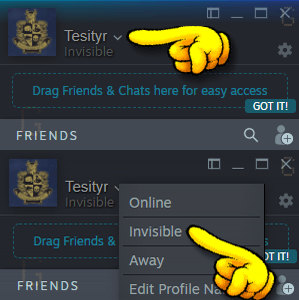
Steam: Newest Update = How To Be In "Offline" Mode In The Friends List (Like It Used To Be) Is it Gone? [Notification, Tutorial]

Update 2018.08.01: Steam has recently been Updated to include "Do Not Disturb" and "Offline" settings, which coincides with many of the below concepts [as users have asked for them - wtg Valve!]. More details at the Official Steam News Posting, here.


For those using Steam (the gaming/client/launcher interface by Valve - creators of games like the Half-Life, Team Fortress 2 and DOTA 2), you may have had an update recently that made your Friends List appear without you asking it to - and where you seemed to be immediately ONLINE - a virtual version of waking up in a classroom with no clothes on [not ready for it, as in a bad dream..].

Within minutes, I saw a Discussion Thread in the Steam Forums asking how to "be in offline mode" - which is how it used to be; you could set in the Options/Settings, "Appear In Offline Mode" when starting the Friends portion of the Steam client [I was going to the forum to ask myself, as I have an illness that makes me tired easily, preventing me from chatting with friends as much as I would like - and I don't want to appear cold or ignoring of them, so I usually utilize any 'Offline Mode' options in Friends clients].

I looked around in the Settings and configuration of the new Friends List and quickly figured out how to make the Friends portion of the interface 'act' like it used to - that is, how to 'appear offline' to friends in the list, when running Steam [and not get gameplay interrupted with any notifications, that is found further below]. Here is all you have to do:

» Set to INVISIBLE (pull-down menu "v" next to name)

[Stays through Steam restart, when restarting your PC/Steam, it will start up in Invisible Mode]

[Tutorial GIF] Showing where and how to use the pull-down menu option in the new Friends List
in Steam to appear 'offline' (termed "Invisible" in the new Friends List version)

That's it!

Now you can still enjoy your games and 'not be forced to interact' with your Friends on your List [no matter what your personal reason(s) may be..]. HTH


Addendum I:
I wanted to add that although the terminology has changed, the functionality remains the same; that is, you can still 'hide' yourself from everyone and not see any messages or notifications, until you specifically want to, opening the Friends portion of the Steam Client, and looking at your Messages. Here, for example, is the Notification Settings to apply, if you do NOT want to be notified when Friends come Online or send you Messages - combined with the above "Invisible" setting, it will function exactly as before - you will be 'greyed out' on their end(s) and it will just show when you were "Last Online", and if they send you Messages, they will be kept on your end but nothing will pop-up/sound to let you know that the Message arrived:

Example of the settings for the Notifications, where with the settings above, you will not have anything interrupting you as you play (no sounds, no pop-ups, nothing). Together with setting yourself as "Invisible", it is functionally the same as "Offline Mode" before, in the older Steam Client. Access the Friends List Settings by clicking on the Gear icon in the main Friends List window (Click to see Full Size)

Addendum II:
Doing some further testing, I wanted to add that the Website/Browser functionality operates in the same manner as the stand-alone Steam client. That is, you can set yourself to "Invisible" and it will act as "Offline" did in the past (you will be 'greyed out' on your Friends' Lists). You have the same Notification options as the above example image as well (minus the Steam-Client-specific 'window flashing' buttons) - the interface even looks the same (colour and button/link locations), which is always good for user-friendliness...

Note: You will be set to "Online" the very first time that you open the Web/Browser version of the Friends List (eg. clicking on the Envelope>XunreadChatMessage at a Steam webpage) - but once you set yourself to "Invisible" in the Browser portion/window, it remains that way if you close the Friends window and open it up again. I even tested closing the browser (Chrome) entirely, waiting a while, then opening up a Steam website, then the browser-based Friends List - although I remained 'logged in', I was still 'Invisible' in the Friends List window/page when I restarted Chrome.


I want to say a quick Thank You to Steam/Valve for allowing those that don't wish to be Visible all the time [and/or those that have illnesses that prevent them from using this portion of the client well/properly/astheydesireto], to still remain "offline" to Friends - not all companies would maintain this level of user option/satisfaction.
I realize it is more difficult these days, as studies have shown that if customers/players can have multiple facets of interaction (text, chat, voice, etc) it 'solidifies' them as players/customers, maintaining them longer [than if there were not these channels of interaction]. This correlation is so pervasive, that Live Voice Chat seems to be 'making a comeback' from the abandoned, garbage-filled-alleyways of the 1990's, with Stand-Alone clients and chat-only options popping up recently [as of the time of this post].
Anyway, Thank You, Valve. Thank you for continuing to allow these options to your users/players.
~T

Friday, June 15, 2018

"Can You Guess Where The Screenshot Below Is From?", The Game Tips And More Blog's Game Screenshot Identification Contest, Trippple! Edition [Updated 2018-06-30 with Answer Images]


Well, it's about the middle of the month - and that means it's time once again for something I got into again this year - The Game Tips And More Blog's 'New-ish-sorta-but-only-kinda' Contest:

"Can You Guess Where The Screenshot Below Is From?"
(A Game Screenshot Identification Contest)

Having its' IXth - and 'Super Special Trippple! Screenshot Edition' - today, June 15th, 2018!


All you have to do to win this identification contest, is to contact me in any way you can (eg. Comment on this article below, Twitter profile tweet, Email or make a Comment, here or at The Blog's Facebook Page, or Private Message TheBlog's Steam Account by the end of the month, with these two items within your message:

1. Your guess(es) for the game(s) the image(s) are from.

2. Information on how to contact you back (to receive Steam game gifts, etc) if you win.

That's it!

[Just a quick note to be careful not to include any information you do not wish to share 'publicly' when posting in the Comments area below or at Steam or sending a Twitter profile Tweet, as these messages are seen by 'everyone']


The first correct answer(s) submitted by a Skillful Identifier/Gamer will receive this month's contest prize - which is: a gifted game from a selection at the Steam online store! And, in this Super Special Trippple! Edition, there are Three Chances for Three different Winners! One of them could be you!

One Correct Guess = One Gifted Game Win.

Winners are only allowed one 'win' this month, to allow for the possibility of Three different Winners.


[Note: Although I have been collecting Games in my Gift Inventory on Steam over the past few Years, during Steam Sales,
due to how Steam has changed Gifting games through Steam recently; you will have to temporarily become a Friend
of TheBlog's Steam Account to receive the game - after receiving your Gifted Game, you may Unfriend of course]


Winners will also be announced in bold, large lettered-text, here on this very posting and will thereby be immortalized on The Intertubes in perpetuity, proving to all other comers that you were "The Ultimate Game Screenshot Guesser Thingy Person" [aka. Gamer]!

...


This time around however, due to there being no winners for the past while: I will give out not only One but THREE Screenshots to guess! It's a TRIPPPLE! Super Special Screenshot Edition!
Even if you can guess only One of the games - you will win!

Are you ready? Here then, is not only One, but THREE 'Mystery' Screenshot images for this month, just below:

Trippple!
Trippple!

Trippple!

[As you can see, the images are portions of the original full screen captures - and while it isn't 'super easy', as it is just a small part of the screen - the image used for the contests will never be super hard, by being 'too' obscure or small (for example, it will never be 'just the end of a wooden log' or anything like that). The Images utilized are also always presented 'Unedited' (other than being Cropped to the smaller size and Logos added), if that helps. Click to see Full Size]


As usual for this Contest, after a week has gone by, if there is no correct guesses as to what games the Screenshots are from, I will still return here and put up 'Hint' images - that is, larger portions of the Screenshots - to assist in Game Recognition-ing-ness-ism... Remember, you only have to guess ONE of the THREE Screenshots above - it's a Super Special Trippple! Edition! [lol]


Good Luck, Gamers!


...


Update!

A week has gone by and there have been no correct guesses yet... So, here are the HINT images (enlarged area portions of the CONTEST images for this month's Contest)!

Ready?


Here are the HINT images (with enlarged portion revealed), below:

Trippple!
Trippple!

[As you can see, the image is still a portion of the full screen capture; but don't worry - the image used for the contest will never be 'too' obscure or small. Also, the Screenshot utilized is always presented as 'Unedited' (other than being Cropped to the smaller size and Logos added), if that helps at all. Click to see Full Size]


[Bonus Hint: Image 3 is not the game "World Of Warcraft"]


Can you guess what games the Screenshots are from yet? Pop into some games and look around and see if anything 'rings a bell' (that is not a hidden 'hint' heh)... At the end of the Month, if noone has guessed correctly by then, I will return here and reveal the full Mystery Screenshots and the Games they were from - Good Luck, Gamers!


...


Update!

It is the end of the Month and there have been no correct submissions! Aww....


To end The Mystery, here are the answers for all three Trippple! screenshots
in this special IXth Edition of
'Can You Guess Where The Screenshot Below Is From' (2018-06):


 Trippple!
Trippple!

The Answers for this month's Contest were: Hitman Absolution, Fallout 4 and Paladins!
[These Screenshots, other than the Fallout 4 image, were captured within the past year or so. For those playing Paladins, it is now out of Beta. The level/map in the Paladins screenshot is "Timber Mill". The Hitman Absolution screenshot was taken in the first/tutorial level "A Personal Contract". Click images to see Full Size]


Come back next 15th-of-the-month friends, when there will be another chance to be a Digital Screenshot Sleuth in the "Xth" Edition of 'Can You Guess Where The Screenshot Below Is From' - where I will display/share two Screenshots - offering two different chances to Guess The Game and Win The Prize that is carried over to next time: a gifted game from a selection of the Steam Online Store!


See You In The Games!


[Note:After finalizing this Posting, I have been notified by my lawyer that there is a mobile application concerning dating that has the name/title "Trippple". For legal purposes, this Contest is sub-titled "Trippple!" (with exclamation mark) and is a separate legal entity than the aforementioned mobile application. It is also a "temporary construct", "for entertainment purposes", in light of the three (3) available screenshot/images available for this local contest. This blog, its authors, blogspot and any connected businesses or persons thereof, are not affiliated with the "Trippple" (no exclamation mark) company or application. The above is a Contest for entertainment purposes only, the identification of images shown, acting as the Skill Test for Official Contest Purposes and Laws. For further Legal Inquiries regarding this matter, contact "Editor-In-Chief" at gametipsandmore@gmail.com]


(The Game Tips And More Blog Contest Game #2018-06)

Friday, May 04, 2018

Deals And Sales - Star Wars Games, Most On Sale All Weekend - May The 4th Be With You! [Notification]


Just a quick reminder or for those that may not have noticed yet, that Star Wars games (on PC and Consoles) are going on Sale like crazy everywhere right now, most places having them On Sale over the whole weekend, into Monday or Tuesday. Check out places like Good Old Games (now GOG.com), The Steam Store, EA's Origin Marketplace, HumbleBundle (to help Charities!) and more... Have fun shopping for yourself or your loved one(s) - and have a Happy Star Wars Day and May The 4th Be With You!


Edit:
I forgot to say - if you Login to Star Wars: The Old Republic MMORPG by May 7th, you will get an Astromech Droid pet after May 9th! Details from swtor.com:

  •  Log in by May 7th to qualify for your very own M4-Y7 Astromech Droid Mini-Pet! A deeply loyal and rugged Droid, the M4-Y7 Astromech Droid is known for its steadfast and stoic reliability. No matter how far your adventures take you across the galaxy, the M4-Y7 is your “DBFF” (Droid Best Friend Forever)! Your new Astromech Droid can be claimed beginning May 9, 2018 at 11:59PM PDT (May 10, 2018 at 6:58PM GMT) through your in-game mail.
The M4-Y7 Droid, animation/GIF from the SWTOR.com website


http://www.swtor.com/info/news/news-article/20180501-0


[Note: I am not affiliated in any way with GOG.com, Steam, EA, Origin, HumbleBundle, LucasArts, Disney or any other company mentioned herein and I have not, and will not, receive any compensation in any form, for mentioning them here. I am merely a fan of the Star Wars franchise/products and an enthusiastic gamer, wanting to inform and help out others, as I can.]

Tuesday, October 31, 2017

The Elder Scrolls Online - How To Logout Of Your Game Account, When Using The Steam Version Of TESO [Tutorial]


Recently, I was getting back into playing The Elder Scrolls Online a bit - which I haven't really played at all since the Beta Testing Phase of the game. I was also popping in to the Steam Forum for the game, helping out a few people and I ran into someone asking about 'how to logout of the game' - that is, how to Logout of their Account but not actually exit/quit the game itself. While this may seem easy with the Standalone/Web Version of TESO (you just click the "Back" link at the Character Selection screen, which takes you to the Login screen, with the Account information fields to fill in); with the Steam Version of TESO - when you have associated your Steam Account with TESO - this is not quite as easy, as hitting "Back" at the Character Selection merely takes you back to a screen that just says LOGIN, with no fields to fill in. An example of how this looks is just below:

Example of what the Login Screen looks like,
when a Steam Account is directly associated with a TESO Account
(Click to see Full Size)

So, I tried to figure out how to 'logout of the game' but not 'logout of Steam', as it were; being able to log out of TESO so that one could change to a different account if they wanted to (say, to let a family member login/play with their own account), but keep Steam and the game running, similar to what one could do when running the Standalone/Web version of the game...

Normally, this can be done with games that utilize Game Clients ("Launchers") by not starting up the Game Client, but instead going to the executable file for the game directly, running it to start the game up (which usually opens the game to a Login screen of some sort). In the case of the Steam Version of TESO, here are the steps I found to do this:

  • Open Steam
  • Right-Click on TESO in the Library and choose Properties
  • Click on the Local Files tab
  • Click on the Browse Local Files button to show the directory/folder of the game
  • Navigate into THE ELDER SCROLLS ONLINE > GAME > CLIENT folder
  • Double-Click on "eso64.exe" to launch the game (or "eso.exe" if running 32-bit Windows/Game)


That's it! Now you should be at the Login area that everyone with the Standalone/Web-sourced version of The Elder Scrolls Online sees: a screen with Data Fields that can be filled in with Account Information, to Login. An example of what it looks like, is below:

Example of what the Steam Version of TESO's Login Screen looks like,
when launched directly from the Executable file,
even though a Steam Account is associated with TESO
(Click to see Full Size)


I wanted to share this here, to help others that might run into this 'problem'; wanting to 'logout of their TESO game account' or 'change TESO game accounts', while using a Steam Version of the game. While associating your Steam Account with your Elder Scrolls Online Account is somewhat convenient (as you don't have to type in your login information every time you start the game), hopefully this will assist with the issue that does arise then, when one wants to just Logout of the game and/or Login with a different TESO Account.


I hope that helps - and See You In The Game!

Saturday, September 30, 2017

Fallout 1 - Get It For Free... Happy 20th Birthday! [Notification]


Just a quick notification that, in celebration of the Fallout's series debut, exactly 20 years ago to this very day, it is Totally Free on Steam, right now, from Bethesda - but only for today... Grab it before the end of the day and play one of the most RPG-Genre-Expanding, Post-Apocalyptic-Exploring Classics of PC gaming. Have fun (and thank you, Beth)!


http://store.steampowered.com/app/38400/Fallout_A_Post_Nuclear_Role_Playing_Game/


Addendum:
After trying the game out (not playing it since I had the CD version way back when!), at first, all I got was a Black Screen, but I could hear the audio of the game playing in the background... After doing some light troubleshooting, including re-installing DirectX and other steps, the easiest 'solution' that I eventually found was to simply choose the "Classic Version" from the Steam Launch Options. Here is what that looks like, below (these options did not show up if I used the Desktop Shortcut or clicked on the .EXE file to start the game, but they appeared consistently if I used the PLAY button in the Steam Client):

Tutorial Screenshot of simply choosing the alternate version of the game to run, if you encounter a 'black screen', where you can hear the audio of the game, but not see anything else concerned with the game
(Click to see Full Size)

After choosing that version, above, the game repeatedly ran fine with audio and video together in harmony, on my system (currently an AMD FX-8350 CPU and NVIDIA GTX 1060 GPU running Windows 10). I hope it works for you dear reader, as it did for me, if you run into that little initial problem... Enjoy!

[Note: It is unclear at the time of this posting, if the game it completely free 'forever', or if it is just 'free to play' for the day - UPDATE, it indeed seems to be permanently part of my Steam account - a nice 'gift' from Bethesda!]

Tuesday, February 07, 2017

Fallout 4: High Resolution Texture Pack (Free DLC) Is Now Available [Notification]


For those that haven't heard yet, as mentioned last week at their site here, Bethesda has released a High Resolution Texture Pack, that is now available for free, downloadable via Steam.


The graphic 'upgrade' includes 'native 1440p' textures [which means the textures themselves are 2560x1440 pixels in size - but remember, textures usually aren't displayed at Full Size, they are squished into say, the sides of a gun, or a sign or other things in the world - even if they cover a large wall in the game, they will usually not display 'at full native size' - and even if they do, they can be repeated ("tiled") to fill in the space of objects needed, in the game world - basically, 1440p textures should make the game look great]. It also includes Enhanced Draw Distancing and God-Ray tweaks [those glow-y, streaks of light, showing up especially when a source of light is behind something, such as the sun behind trees or buildings].

Now, up until this release, I personally was playing with SweetFX a lot in FO4, having fun increasing Sharpness and Shading, dealing with the Aliasing, taking Screenshots and 'Realistic Photos' and 'Close-Ups' (with Depth-Of-Field, etc) of some of the Characters in the game. These can be found here, at a slowly-growing Flickr page I started for The Blog. A couple examples of these, taken with 'SweetFX in ReShade' are just below - I look forward to what the entire game could possibly look like with the new High Resolution textures!

Fallout 4 - Mrs. Nordhagen, Settler I - SweetFX in ReShade
(GTAMblog7Photo SweetFX Preset, made available Soon™)
Click to see Full Size
Fallout 4 - Mrs. Nordhagen, Settler I - SweetFX in ReShade
(GTAMblog7Photo SweetFX Preset, made available Soon™)
Click to see Full Size
ReShade by Crosire (reshade.me)
SweetFX by CeeJay.dk (ceejay.dk)
Game Material by Bethesda Game Studios (bgs.bethsoft.com)
Captured by Troy from The Game Tips And More Blog

Since I don't actually have room for it on any of the drives I have Games on at the moment [which seems to always happen when something cool comes out, of course], I will be moving some things around and uninstalling other games I am not playing at the moment, to make room for this big fella...


It is an optional/separate "DLC" download, weighing in at a hefty 58GB installation through Steam. Once I get it going, I will be working on a QualityTest for it, comparing the graphic look between the two versions and what they really look like in-game - as well as the Performance Hit the Texture Pack creates - look for that coming post Soon™ if you are waiting to see what they look like or if it is 'worth the download'; but if you can't wait and want to get started seeing it yourself, go get it via Steam for free now, here.


This free download, by the way, is - in Bethesda's own words, "...a love letter to our amazing PC fans that have supported us – not just with Fallout 4, but across multiple decades and games...". 
Right back at ya', Beth! 
"Thank You" ~ Sincerely, The Game Tips And More Blog

Header and Footer Images captured by Bethesda, from their example screenshots of the High Resolution Texture Pack

Monday, June 29, 2015

Clicker Heroes - Possibly the Last Game You Will Ever Play, Literally [First Impressions, Tips, and some Screenshots]

"Cunningly Addictive" ~ The Game Tips And More Blog


Recipe For "Egg Stream Lee", A Very Addictive Game (Clicking Spices version): 
2 parts random-loot-and-gold-collection feeling of Diablo2
3 parts colorfulness of a Japanese Animation
1 part the simplicity of a Browser-based game
Generous sprinkles of Humour
Pour mixture into a shell of Mathematics, Statistics and Programming
Let Steam, Downloading for 1-2 Minutes, until thoroughly Installed
Pour Clicking Spices all over top and sides
Prepare desk for eating and have enough supplies for never getting up again

Spend the rest of your life Clicking at the main website, or through Steam
(Graphic from the Clicker Heroes Website)


I haven't played this game for very long (I expect to do so, over time); but I already feel like I am a rat in an experiment. That, or the creator of the game is a Psychology Major, as the entire thing feels like a series of Human Cheese Traps, spaced out skillfully apart - each one just far enough away so that it doesn't seem like you have limitless amounts of cheese, but also close enough together, so that once you are finished with your present goal/cheese, looking up, there is another piece not far away - and you want that one now, too.


One of the first things to learn, for your own safety, is how to Exit the game. To do this, click on the 'x' in the corner of the Window. If in FullScreen mode, hit ESC to go into Windowed Mode, then click on the 'x' to do a typical Exit [Suggestion To Devs: an Exit within the Main screen area would be great]


"An Interactive Study Into Human Tendencies", should be an alternate name for this game. The Recipe I made above says it all: there is a nice sense of progression in the game, just enough to keep you interested as, everytime I 'got bored', something else 'unlocked' and I wanted to play further. There is even a sense of 'Inclusion' - the concept that your performing some action (you, as the player) makes a difference in the game. While overall, it does not [I mean that literally in the game and metaphorically as this is a game], it does still add to the sense of Inclusion, as you are helping your Heroes kill even faster, gaining gold even faster, which allows Upgrades even faster, which then allows killing even faster! And thus is the Circle Of Life. That is, your life, which could possibly become nothing but this game (esp. if you have compulsive tendencies). Serious for one moment: be careful to balance this game and the human tendencies it illicits, with discipline, restraint and breaks with 'real life' (if you can)...
"Need to do the laundry? Give the puppy a shower? No worries! Your heroes will farm monsters and automatically collect the gold while you're gone, even when the game is closed. But don't forget to come back and spend all that sweet gold on new heroes and upgrades!" ~ from Clicker Heroes Steam Store Page (Above Graphic from Clicker Heroes Steam Store Page)


That's right, after closing the game (if you do happen to pull yourself away from it, into Real Life), all the Heroes you hired in the game will continue to fight for you, killing monsters and collecting teh goldz, non-stop. While not a new concept in games ('working for you while you are gone'), it adds to the sense of progression, as you return to huge masses of gold, ready to spend on Upgrades and New Heroes that have come to help you amass even more gold...

While you weren't playing, you earned 567 Trillion Goldz. Trillion.


The background music that plays (but can be turned off, which is important to many), is a pirate/adventure-style beat, from what sounds like Midi-powered Orchestral sources. It is catchy, even though it merely repeats over and over. [It would be nice to see a 'Battle Music' concept here, where the music changes if you actively participate (with immense clicking), changing back to the 'standard music' when you stop helping out your heroes]


When you hire the Hero named "Betty Clicker", Unlock her Upgrades as fast as possible, as her Upgrades help all your other Heroes out! As well, when you are able to hire the Hero named "King Midas", Unlock his Upgrades as soon as possible too, as his Upgrades increase all gold amounts found, from then on!


The overall strategy in the game is simple: You click/hit Monsters that automatically appear, which eventually die, and drop Gold. This money can then be used to hire Heroes, which approach you automatically and can fight for you, adding to your Damage. These same Heroes fight for you constantly, even if you aren't playing the game. After each batch of Monsters are killed, it makes opens the way for you to enter a new Area (Level). Each consecutive Area/Level has another batch of Monsters - but higher Level/Area Monsters drop more Gold. However, the higher you go in Levels, the more Damage you need to do, as the Monsters have higher and higher Hit Points [amount of Life] to hack through, in order to kill them... It quickly becomes a delicate balance of what level you could play at, versus how fast you can kill - which means how much gold you can acquire for Upgrading your Heroes (which allows them to do more Damage for you) ...to kill faster, to play higher levels, to get more goldz... and on and on it goes. So then, 'what do??'

Do you stay on the same level longer, to get easy (but less) gold?
Do you try to move on, killing slower (but the monsters you kill drop higher amounts of gold)?
Do you hire a new Hero to help your DPS (Damage Per Second) or Upgrade your current Hero to do more damage instead?
Do you hoard your gold and spend it in large purchases, or do you spend it as fast as it is coming in?
These are Life Lessons, people.

Maybe that's what this game is, a Training Course for Real Life... It is showing you that the sense of progression in Life is merely nothing but one piece of cheese after another. Feed that hunger, earn that money, buy that thing, play that game, poop that poop. Sleep. If you wake up, Repeat: Feed that hunger, earn that money, buy that thing, play that game, poop that poop. Sleep. If you wake up, Repeat. Do you see? This game is an allegory for the human experience! It is showing you the folly of life! Life is nothing but a treadmill of "upgrades" and "quests" and "other people that come along" and all your life can be simplified down to what... CLICKS! The clicks are your footsteps in life! The clicks are your thoughts as you walk around, the thoughts of the people "the heroes" in your life, the clicks are your actions, your doing homework, your paying the bills, your food going in your mouth! The clicks are your breaths! The clicks are your heartbeats! IT IS ALL JUST CLICKS AHAHAH...

...I got up off the floor after laying there a while... I'm ok now.


See this little orange guy to the right? Hit these! They have a chance of dropping Rubies, which can be used to purchase items from the Shop (giving you 'buffs' such as Gold, Faster Cooldowns, and Higher DPS).


These 14 Rubies I have, were found (not bought) by killing the li'l orange Monsters shown in the GIF above. They appear randomly and have a random chance at dropping a Ruby. Of course, the Developers of the game can always be Supported by purchasing some!
(Screenshot of Cash Shop, Click to see Full Size)


Wondering what the Letters and Symbols mean? Here is the Key to them:
  • 1K = 1,000 = One Thousand
  • 1M = 1,000K = One Million
  • 1B = 1,000M = One Billion
  • 1T = 1,000B = One Trillion
  • 1q = 1,000T = One Quadrillion
  • 1Q = 1,000q = One Quintillion
  • 1s = 1,000Q = One Sextillion
  • 1S = 1,000s = One Septillion
  • 1O = 1,000S = One Octillion
  • 1N = 1,000O = One Nonillion
  • 1d = 1,000N = One Decillion
  • 1U = 1,000d = One Undecillion
  • 1D = 1,000U = One Duodecillion
  • 1! = 1,000D = One Tredecillion
  • 1@ = 1,000! = One Quattuordecillion
  • 1# = 1,000@ = One Quindecillion
  • 1$ = 1,000# = One Sexdecillion
  • 1% = 1,000$ = One Septendecillion
  • 1^ = 1,000% = One Octodecillion
  • 1& = 1,000^ = One Novemdecillion
  • 1* = 1,000& = One Vigintillion
This game deals with extremely high damage, gold and numbers in general - use the above Key to decipher what stage/amounts you are dealing with!


There's not much else to say about this deceptively addictive game (other than you can play it at the Main Website or Install it via Steam). You will either hate it, saying it is too stupid, too simple, too repetitive - or you will love this game and you will find it fun and addictive, and you will play it a lot - you will play it forever. Just don't hold your breath when you are trying to click as fast as you can...


Don't hold your breath when you are trying to click as fast as you can. You may die.
Actually, you will just pass out, and then you will resume breathing normally and wake up. Unless you hit your head on something when you pass out, or fall on something that crushes your windpipe. Then you will die. Basically, don't hold your breath while clicking, ok?


I haven't been playing very long [Level 85 woo!] and already I can see this game may ruin my life. This game has already ruined many lives. Maybe you shouldn't play this game after all. Maybe everyone should.

See You In The Game... or at least, Playing It.


[Personal Logarithm: I have a 'tip' for clicking speed, something I call "The Quiver"... It's something I figured out in the days of Famicom/Nintendo, where I could 'stiffen' my hand (holding out my index finger) and tighten my arm (bicep and tricep at the same time, almost as though 'flexing' for your 'special someone') - and then just let it 'quiver'... If done right, your finger (held stiff on your tightened hand and arm) will be bouncing up and down, very fast, on the desired button (in those days a Nintendo Controller..today a mouse). It may take practice, but once mastered, it will increase your speed not only on mouse-driven games, but also in all other games that require repeated button pressing (tested since the old cabinet stand-up arcade games..). I pass this torch of button-mashing technique, from "Old Skool" gaming days onto a new generation, you. Hopefully my unmet gamer friend, you can master this 'quivering' technique, one that will assist in mounting massive attacks in fighting games and all manner of button-mashing machines - and in Clicker Heroes, may it help you amass large amounts of goldz for your deepz... Enjoy]