Showing posts with label resolution. Show all posts

Thursday, January 24, 2019

Quick Tip: How To Run SimCity 4 in 1920x1080 (Widescreen) Resolution, as of 2019.01 [Tutorial]

Update 2019.03.14: Added Screenshot Example of SimCity 4 running in Widescreen (16:9/1.78 Aspect Ratio)

[Text-Only Mode - this is currently being posted in Text-Only Mode, to speed up posting as soon as was finished, to help others as quickly as possible. I may return here and add some related Screenshots... Soon™]


Recently, I've been getting back into game like SimCity (2013) and SimCity 4 (2003) [found on EA/Origin and Steam, respectively], having fun building up cities and looking forward to large skyscrapers filling the skyline, keeping my Sims happy as they churn through their little lives... Looking through a SimCity forum, while I was reading up a bit about Omega (which is 'new to me') I came across someone posting a Thread asking about 'how to run SimCity 4 in 1920x1080' resolution. I saw some replies from other helpful people, but oddly, none of the options/command-lines worked [as of the time of this posting], with typed-in options such as "-w" (for running in Windowed Mode) and so on... Wanting to help, I went experimenting in Steam's SimCity 4 that I owned and looked a bit more online about other possible solutions as well - and I eventually found out what works, as of today! Here is what worked for me:

  • In Steam, where SimCity 4 is listed in your game Library, Right-Click on the game name and Select (Left-Click) Properties.
  • In the center section, click on the button labelled "Set Launch Options...". This adds commands to the game that would be 'typed in and utilized', if the game was run in that type of interface.
  • In the box of Launch Options, type (or copy-paste) the following into the area:

    -CustomResolution:enabled -r1920x1080x32

    [be sure to include the hyphens and have only one space between the two commands]
  • Click on OK to close that panel, then click Close to close the Properties of the game in Steam

That's it! 

Running the game (and after the Introduction Cinematic/Movies play [if you have not disabled them] as they are rendered and play in a fixed resolution), you should find the territory/region screen gloriously taking up all of your screen space... Here is what it will look like:

Example of SimCity 4 (Steam version shown) running in Widescreen (16:9 Aspect Ratio) Mode in Windows 10,
after following the steps shown above [other steps found online did not work for me personally]


Have fun building up your Sim City! 

[Don't forget to take lots of Screenshots! heh]

~T

Tuesday, February 07, 2017

Fallout 4: High Resolution Texture Pack (Free DLC) Is Now Available [Notification]


For those that haven't heard yet, as mentioned last week at their site here, Bethesda has released a High Resolution Texture Pack, that is now available for free, downloadable via Steam.


The graphic 'upgrade' includes 'native 1440p' textures [which means the textures themselves are 2560x1440 pixels in size - but remember, textures usually aren't displayed at Full Size, they are squished into say, the sides of a gun, or a sign or other things in the world - even if they cover a large wall in the game, they will usually not display 'at full native size' - and even if they do, they can be repeated ("tiled") to fill in the space of objects needed, in the game world - basically, 1440p textures should make the game look great]. It also includes Enhanced Draw Distancing and God-Ray tweaks [those glow-y, streaks of light, showing up especially when a source of light is behind something, such as the sun behind trees or buildings].

Now, up until this release, I personally was playing with SweetFX a lot in FO4, having fun increasing Sharpness and Shading, dealing with the Aliasing, taking Screenshots and 'Realistic Photos' and 'Close-Ups' (with Depth-Of-Field, etc) of some of the Characters in the game. These can be found here, at a slowly-growing Flickr page I started for The Blog. A couple examples of these, taken with 'SweetFX in ReShade' are just below - I look forward to what the entire game could possibly look like with the new High Resolution textures!

Fallout 4 - Mrs. Nordhagen, Settler I - SweetFX in ReShade
(GTAMblog7Photo SweetFX Preset, made available Soon™)
Click to see Full Size
Fallout 4 - Mrs. Nordhagen, Settler I - SweetFX in ReShade
(GTAMblog7Photo SweetFX Preset, made available Soon™)
Click to see Full Size
ReShade by Crosire (reshade.me)
SweetFX by CeeJay.dk (ceejay.dk)
Game Material by Bethesda Game Studios (bgs.bethsoft.com)
Captured by Troy from The Game Tips And More Blog

Since I don't actually have room for it on any of the drives I have Games on at the moment [which seems to always happen when something cool comes out, of course], I will be moving some things around and uninstalling other games I am not playing at the moment, to make room for this big fella...


It is an optional/separate "DLC" download, weighing in at a hefty 58GB installation through Steam. Once I get it going, I will be working on a QualityTest for it, comparing the graphic look between the two versions and what they really look like in-game - as well as the Performance Hit the Texture Pack creates - look for that coming post Soon™ if you are waiting to see what they look like or if it is 'worth the download'; but if you can't wait and want to get started seeing it yourself, go get it via Steam for free now, here.


This free download, by the way, is - in Bethesda's own words, "...a love letter to our amazing PC fans that have supported us – not just with Fallout 4, but across multiple decades and games...". 
Right back at ya', Beth! 
"Thank You" ~ Sincerely, The Game Tips And More Blog

Header and Footer Images captured by Bethesda, from their example screenshots of the High Resolution Texture Pack

Wednesday, July 17, 2013

Game Tip - Rollercoaster Tycoon 3: Changing The Game Display Resolution


Just a quick tip for Rollercoaster Tycoon 3 (and any Expansions you may have installed): To change the resolution to match your monitor's native rez or to bump it up higher, simply edit the Options.TXT file found at

Computer > [WindowsDrive] Disk C > Users > [UserName] > AppData > Roaming > Atari >RCT3

(See the screenshot just below, my 'username' was "Tr")
The location of the Options text file that allows you to edit the resolution the game will run in (Windows7)

Another way to get to this location in Windows is:
  1. Click on the Start button, then click on Run [or press 'WindowsKey+R']
  2. In the command box that comes up, type "%appdata%" (without the quotation marks) and it will open Windows Explorer at the folder >Roaming - then all you need to do is navigate into the Atari folder, then within that, the RCT3 folder - and you will be at the same location as the above, where the Options.txt file can be found
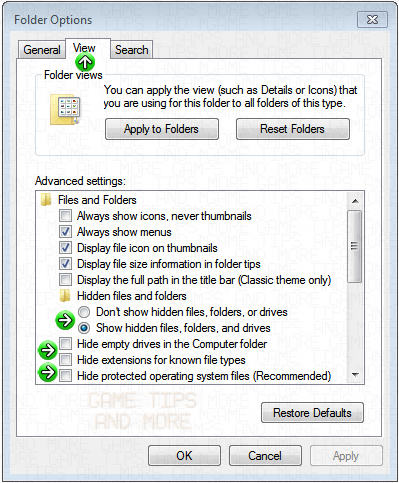
Note that you may have to show Hidden Files in Windows in order to see some of the folders (such as AppData). To do this:
  • In Windows Explorer, click on the Tools pulldown menu and select Folder Options.
  • In the Folder Options window, click on the View tab
  • In here, under the Advanced Settings section, where it says 'Hidden files and folders', select the 'Show hidden files, folders, and drives' Radio Button
  • Also, take out the checkmarks for the next 3 'Hide' selections (Hide empty drives, Hide extensions and Hide protected files)

Here's what the checkboxes, etc look like:

After the steps above, you should be able to now navigate to the RCT3 folder that has the Options.txt file with the resolution setting inside (open it with Notepad or your favorite text editor). You'll see the setting near the beginning of the file. Simply change those numbers to the resolution you wish to use - that's all.

Have fun and See You In The Game!