Showing posts with label tip. Show all posts

Friday, September 15, 2023

Starfield is now on GeForce NOW


Just a really quick post because I am so excited about Starfield: oddly not seen on their 'announcement' areas at NVIDIA's GeForce NOW website (GFN Thursday, etc) - it is indeed listed as playable on GFN in NVIDIA's listing of available games:


I say "odd" because I didn't see it prominently displayed on their blog page where they announced that XBOX Game Pass for PC was being added to GeForce NOW (August 24th):

It isn't listed in the 'list of newly added games', where they have Deathloop and Doom2016 listed - so at the time I didn't think it was available. Since the XBOX Game Pass for PC was added (which is totally awesome) I thought/hoped that maybe Starfield would be seen one day there, but it wasn't at the time.

I'm not sure why, but just a bit ago I wanted to download the latest version of GeForce NOW and see what's new there (I don't think you 'have to', as the app will Update itself, it seems; but I do this once in a while when I haven't played GFN for a bit - just to make sure I have the latest version). After starting GFN up, I noticed Starfield was listed in the PC Game Pass list of games - woohoo!


It is also available to play on GFN if you own it on your Steam account, so go try it now, NOW gogogo lol


Update 1: starting Starfield up on GeForce NOW, it came up with "Syncing"... and that took a while... Then, starting it up again later, going into the Main Menu and Startup areas of the game, it came up with "Building Shaders" - but thankfully, although it started out slowly, it didn't take long at all. Just give it a little time and it'll finish heh. Also, it seemed to have my updated Save Games from the XBox For PC game cloud all ready - which is great [nice job GFN team]. Have fun!

Friday, July 30, 2021

OBS Shortcut / Hotkeys Stopped Working [Fix/Workaround]

Just a quick fix/workaround for something I bumped into with OBS this past few days - for some reason, the Hotkeys (Shortcut Keys that you press to start Recording, Take Screenshots, etc) seemed to stop working once you took the focus off of OBS itself. For example, if I started OBS, then started a game, and hit the keyboard key that was configured for OBS to Record (while it was in the background), it didn't do anything (eg. / to start recording). I did figure it out though, it was a real easy fix for now; so I wanted to share it here.

There was a Windows Update recently [for me] and so I thought maybe OBS needed more Permissions or something; so I just ran OBS in Administrator Mode - and it worked!

All you have to do is Right-Click the Icon that starts up OBS and choose "Run As Administrator" (possibly under More > Run As Administrator, for example, if using the Start Menu for launching OBS). That's it!
Now you should find that you can start up a game and/or ALT+TAB to the game, leave OBS running in the background, and OBS will faithfully start Recording/Taking Screenshots/etc again. 


Sorry I haven't posted for some time now; my own illness (not COVID) has been acting up this year. A lot. Anyway, HTH

~T

Saturday, June 15, 2019

Deals and Sales: Giveaway and Sale at GOG: Toonstruck for FREE - One Day Only! [Sales]


Did you know that Christopher Lloyd (Back To The Future, Who Framed Roger Rabbit) was in a videogame?

It was called Toonstruck (1996) and it is an animated Adventure Game, in the vein of Day Of The Tentacle (2016 Remake, 1993) and it is being given away Totally Free at GOG.com right now, during their Summer Sale Festival - all you have to do is go there and Sign In - that's it!

Other games seen On Sale at GOG are:
  • The Witcher 3 : $20
  • Fallout 3, Game Of The Year Edition: $10
  • Grim Dawn: $10
  • No Man's Sky : $30
  • Vampyr : $25
  • Baldur's Gate II, Enhanced Edition: $6
  • Heroes Of Might And Magic III, Complete :$4
  • Diablo 1, with Hellfire Expansion: $10
  • Warcraft 1 and 2, Bundle : $16
If you live in the USA, these are Canadian Prices, so they will all be even a bit less!

Remember, GOG Games are DRM-Free, meaning you can play them anytime and install as many copies as you have systems in your household. The Blog here has over 100 Games and I plan on writing Reviews of them over time in the future...

Although this is not really a "deals blog", I do like to mention Sales when I see them sometimes; so I should quickly mention that HumbleBundle is also having a Sale, it's their City Builder Weekend Sale, with games like Planet Coaster, Rollercoaster Tycoon, Tropico and other Sim-Building Games on Sale.

So go and check out the Sales and get Toonstruck for FREE, now! GOGOGO


[Note: I am not affiliated or partnered with Good Old Games (gog.com) in any form, and have not, and will not, receive any compensation for writing about them here (it can be seen that there are no Affiliate Links being used in any of the Hyperlinks above). I am merely an enthusiastic gamer, who likes to help out others with tips and information, when I can.]

Thursday, January 24, 2019

Quick Tip: How To Run SimCity 4 in 1920x1080 (Widescreen) Resolution, as of 2019.01 [Tutorial]

Update 2019.03.14: Added Screenshot Example of SimCity 4 running in Widescreen (16:9/1.78 Aspect Ratio)

[Text-Only Mode - this is currently being posted in Text-Only Mode, to speed up posting as soon as was finished, to help others as quickly as possible. I may return here and add some related Screenshots... Soon™]


Recently, I've been getting back into game like SimCity (2013) and SimCity 4 (2003) [found on EA/Origin and Steam, respectively], having fun building up cities and looking forward to large skyscrapers filling the skyline, keeping my Sims happy as they churn through their little lives... Looking through a SimCity forum, while I was reading up a bit about Omega (which is 'new to me') I came across someone posting a Thread asking about 'how to run SimCity 4 in 1920x1080' resolution. I saw some replies from other helpful people, but oddly, none of the options/command-lines worked [as of the time of this posting], with typed-in options such as "-w" (for running in Windowed Mode) and so on... Wanting to help, I went experimenting in Steam's SimCity 4 that I owned and looked a bit more online about other possible solutions as well - and I eventually found out what works, as of today! Here is what worked for me:

  • In Steam, where SimCity 4 is listed in your game Library, Right-Click on the game name and Select (Left-Click) Properties.
  • In the center section, click on the button labelled "Set Launch Options...". This adds commands to the game that would be 'typed in and utilized', if the game was run in that type of interface.
  • In the box of Launch Options, type (or copy-paste) the following into the area:

    -CustomResolution:enabled -r1920x1080x32

    [be sure to include the hyphens and have only one space between the two commands]
  • Click on OK to close that panel, then click Close to close the Properties of the game in Steam

That's it! 

Running the game (and after the Introduction Cinematic/Movies play [if you have not disabled them] as they are rendered and play in a fixed resolution), you should find the territory/region screen gloriously taking up all of your screen space... Here is what it will look like:

Example of SimCity 4 (Steam version shown) running in Widescreen (16:9 Aspect Ratio) Mode in Windows 10,
after following the steps shown above [other steps found online did not work for me personally]


Have fun building up your Sim City! 

[Don't forget to take lots of Screenshots! heh]

~T

Wednesday, September 19, 2018

It's Not Just You™ - NVIDIA Drivers Released Today Seem To 'Reset' Notifications Back To Default (ON)

Just a quick post to say that, if you Updated your NVIDIA GPU Drivers today (2018.09.19) and think that the Notifications (Pop-Up Messages) are 'resetting' themselves back to 'ON', if you set them to 'OFF', after rebooting, etc - that It's Not Just You™...


I personally prefer them all 'OFF' (sometimes I leave the Screenshot Notification 'ON') - and so I noticed right away, that after setting them to 'OFF' and then rebooting - they appear to have 'reset' themselves automatically to 'ON' again.

Highlighting the very-helpful 'toggle all' slider, this is how the Notifications look when they are all turned OFF
(GeForce Experience, NVIDIA GPU Software)


I thought maybe I just didn't properly Disable them, so I brought up the GFx In-Game Overlay (formerly SHARE, formerly SHADOWPLAY, etc) and turned off the Notifications (there is a great one-click 'disable all' shortcut-type toggle, wtg NVIDIA!). Then I rebooted.


Restart'in Windaz (Windows 10 Power/Restart Interface)


Upon startup, I hit the Screenshot key configured and 'BLOWP', there was the pop-up Notification ["Blowp" is the sound an NVIDIA Notification makes on this Timeline].


"BLOWP! I SAVE A SCREEN THING!"
(Oh and this is what My Desktop looks like at the moment... The background Wallpaper I made from a Fallout 4 Screenshot. Some icons are made by me as well - if people start asking for them, I will release them, either as a "Pack" or separately, sometime)


I opened up the configuration for the In-Game Overlay (SHARE...SHADOWPLAY...etc) just to see if it was 'reset' back to 'ON' - and it was.

The Notifications in GeForce Experience's In-Game Overlay seem to have automagically 'reset' themselves to the 'ON' setting, after Rebooting the system (GeForce Experience, NVIDIA GPU Software)


Not a huge deal - many of us don't even turn off our systems or need to Reboot near as much anymore these days - and although there is the possibility that NVIDIA intended it to be 'resetting/defaulting to ON', as some sort of "Hey, I'm Runnin' Here" notification to Users after Restarting/Rebooting/etc; I still wanted to try help improve GFx [my abbrev.] and keep it 'free of issues' (as much as I can assist) and 'just in case' went to inform NVIDIA's Support Team that this is occurring with their latest iteration, so I opened up the Feedback and typed this in:

This seemed a lot funnier late at night and really tired... I totally thought I was going to 'cheer up someone's day' with a semi-silly little "complaint", heh (Feedback, GeForce Experience, NVIDIA GPU Software)


Then, I came to Share [pun originally not intended] with my dear readers, or Searchers of this issue/popup occurrence, that this indeed happens - hopefully making the world a little safer and happier, letting others know that if you run into this issue of the notifications 'resetting themselves' with this latest Update of NVIDIA's Drivers - that It's Not Just You™...

Tuesday, September 18, 2018

Quick Tip: Fallout 4 - The Achievement "Benevolent Leader" Can Be Obtained At A Raider Outpost


Just a Quick Tip that the Achievement "Benevolent Leader" in Fallout 4 can be achieved at a Raider Outpost (which are kind of like Settlements... but for Raiders... and they don't Farm... or like to Work at all... or do anything really... lol).


I have not been feeling well lately ['fighting something' heh], but I've been having fun playing Fallout 4 again, when I can. One of the many aspects I like about Fallout 4 is that, it is a game that I can play 'Slow' if I need to (Exploring, Scavenging, or listening to Diamond City Radio while Building Up some Settlements) or play it 'Fast' if I have the energy and/or feel a bit better (Questing, Fighting, Looting Enemies and cleaning out Locations), it's great; I love that I can play this game fast-and-hard like it was a "Just Cause" game or slow-and-sneaky like it was a "Hitman" game, heh.

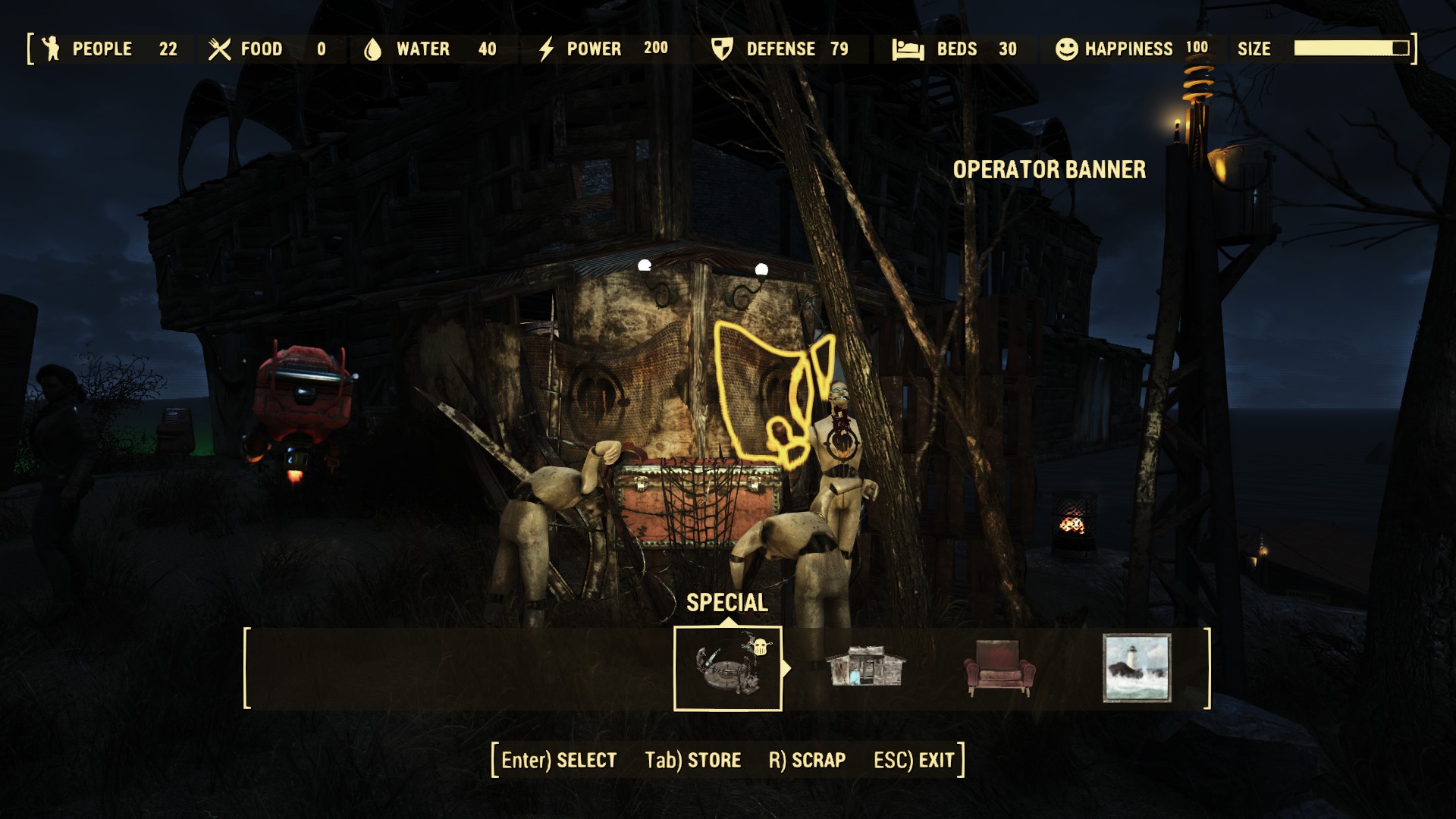
Just the other day, I got my first-ever '100% Happiness Settlement' and Notification in the game - only it wasn't a Settlement per se - it was a Raider Outpost [Nuka-World DLC]! I was so surprised - I didn't even know those were eligible for that Achievement, woot! Thus, I wanted to share, both my Achievement/Celebration and the information that it can indeed be obtained with a Raider Outpost:


In my case, it was achieved at the Kingsport Lighthouse Settlement/Area, converted [taken over] into a Raider Outpost...

[Going to end this here, keeping it 'short and sweet', so that I can post more often (versus longer posts less often), if I can] 

GL to all those going for the achieve!

~T

Wednesday, May 09, 2018

Quick Tip: NVIDIA "Device Not Found" Issues Possibly Fixed In Latest Driver Update [Notification]

Recently, I have been running into an issue I hadn't seen since I last owned an NVIDIA videocard** - a "Device Not Found" error. Thankfully, this problem may be seen even less now, as a recent NVIDIA Video Driver Update, released just now, may fix this issue. If you have been running into a "Device Not Found" error, or the possibly-related "No DirectX 10 or 11 adapter or runtime found" error - with an NVIDIA GPU - grab the Driver Update and see if it makes a difference for you!


I've had a few of these occur the past while, although moreso the last time I owned an NVIDIA videocard**, this 'old issue' popping up again only recently, with GTAV (Grand Theft Auto 5: "No DirectX 10 or 11 adapter or runtime found") and off/on with Playclaw [doing some testing with it for a future 'comparison/shootout' of various game recording programs, I was running into "cannot start encoder for empty frame" and "device not found" errors]. To be fair, AMD GPU's also have similar issues [such as, one which states "The Device Has Restarted", usually after a game/screen 'freezing up' on your for a few seconds]. With NVIDIA releasing an Update today, that stated in the ChangeLog/PatchNotes that an issue of this type has now been 'fixed', hopefully we'll be seeing these errors even less:

The NVIDIA Driver Patch Notes, stating an issue has been fixed that may directly solve these problems.
Click to see Full Size

The actual 'fix' states that the "Driver may get removed after the PC has been left idle for an extended period of time". I say that this may be related to the issue(s) stated above, because I found that after leaving the system on all night, going to play a game the next day, I would often run into these issues/errors (moreso than if I had been continually using the system). These errors would pop up even if I had the GPU Power Saving settings on "High Performance" or "Always On" [I live in an apartment where electricity is included in the price of the rent, so I don't mind leaving the system on 'all night' to perform tasks (backups, video compression, etc)]. A simple Restart usually 'fixes' everything, no errors come up after that, no "Device Has Been Removed" or anything - that is, until I leave the system on 'all night' again... Then these types of errors show up, once I try to utilize the system in the morning. So, hopefully this latest Driver Update from NVIDIA solves, or at least reduces, these types of errors.


Example of one of the errors this Driver Update may possibly fix: "No DirectX 10 or 11 adapter or runtime found"
(Experienced with an NVIDIA GPU while trying to play/startup GTAV after not touching the PC for a long time, shown Full Size)


If you are running Windows 10 and an NVIDIA GPU, be sure to grab this latest Driver and see if it helps reduce their occurrence for you - I'll try to return to this post and let you know if it does/doesn't for me, too. GL!


[Note: I apologize, but I have misplaced/lost a few Example Screenshots of the errors stated herein. Ones showing the "Device Not Found/Ready" or "No DX3D Device Found" or "d3d11: failed to create device" and similar errors, all of which I have run into when trying to use the system after not interacting with it for a while, and took Screenshots of. I will continue to look for these as I can, and once I find them, I will add them into this posting.]


** Disclaimer and Personal Veracity Statement: Although I currently own an NVIDIA GPU, I have owned both AMD GPUs and NVIDIA GPUs in the past, and will do so in the future. I have no personal preference between the two, purchasing one or the other as Upgrades depending on my needs at the time and my financial limitations at the time I need to Upgrade. I have not, and will not, receive any compensation for mentioning either companies' products herein. I am merely an enthusiastic user (of both) and try to share helpful information about them, as I can.

Thursday, December 14, 2017

It's Not Just You™ - HumbleBundle 'Vegas Pro, Discover Creative Freedom' Installer/Registration Not Working [Notification]


For the next two weeks (13 Days, according to the Countdown at the HumbleBundle Website, starting today) there is a fantastic offer for Video Editors, Music Composers, Web Developers and more - over $900 worth of Software, including Sony's Vegas Pro [the Vegas Editing Product Line was bought out by MAGIX, a German software company that has produced it's own editing software for years, popular for their "Music Maker" and "Movie Edit Pro" lines]. So what's the issue? Well, this Bundle is so darn popular, many parts of it aren't working/responding, at this time. For example, if you run into the Installer 'starting but just closing/crashing' or the store or program 'not registering' or the 'website is down'... just letting you know... It's Not Just You™


Part of the reason why this Bundle is so popular (although many HumbleBundles are quite popular at different times), is because one of the main pieces of Software offered is Vegas Pro Edit, originally by Sony. This video editing software is a Premium Version ("high end") of this program, normally being sold at around $400. Along with other great products, such as Magix Music Maker, Xara's Photo and Graphic Designer, Xara's Web Designer, Photo Story Deluxe and more - it's easy to see why this Bundle is so popular, for all kinds of content creators and producers. Indeed, if you are into (or trying to get into) making music, editing video, or web design, at all; I highly recommend picking up this fantastic bundle of software, if you can. The link/URL to the HumbleBundle directly, is here:


For those unfamiliar with HumbleBundle, it is a retail site that offers a mix of software, books and games, connected to and donating a portion to, a customer's chosen Charity. For example, my account is connected to Extra Life, the 'Gaming Marathon' Fund Raising charity that I try to play for every November, on behalf of Children's Miracle Network Hospitals. Because I attached this Charity to my Account, any purchases I make will contribute a portion to my charity. One of the greatest things about HumbleBundle however, is that the products - although one is not able to choose which products to buy specifically - are usually offered in 'portions' or 'packs' for any amount that you can afford to pay (as low as $1 up to whatever you can pay for the software company/charity/etc); and the more you can pay/donate, the more software/books/games/etc you will get. Since 2010, these 'Pay What You Want' Bundles (for Windows, Mac and Linux) have become quite popular over time.


The issue that has arisen this time then, is that the Bundle is so popular, that the server for the Installer has become Unresponsive ("not working"). Even the Website for the Retail/Vendor/Developer itself has become Unresponsive, giving this Error Message [to me] seen below (from Chrome):


As also sometimes happens with the most popular HumbleBundles, some people are experiencing very slow Downloading of their purchased products (as in 256kBps or less). Others are experiencing the Installer for the products stops functioning. This is what I personally am experiencing too (the Installer seems to startup, but then 'crashes' (or at least disappears) and is unable to continue. After one random attempt, I got a message stating that the Installer actually tried to Download the Installation Files but could not properly communicate with their servers. The message that came up [for me] can be seen below:


Trying another time later on, I did see the Installer for the 'MAGIX Music Maker 80's Version' pop up and start Downloading, which was nice to see; however the overall download speed was pretty slow [understandably] at about 300kBps.

If I may make a Suggestion then - if you are running into any of the issues above, at this time: my suggestion would be, to definitely pick up the Bundle if you can [Note: You have to purchase the Bundle for at least $20 to get Vegas Pro] - then wait a while before you attempt to install anything. According to the MAGIX website, you can access your purchase (to install it) anytime after buying it, from now until September 2018 [Note: A free Magix account must be created if you do not already have one]. So, there is no rush, once you purchase it, to get the Installation Files from MAGIX. I also recommend backing up your Installation Files, once Downloaded, onto a USB drive, External Drive or even Optical Disc - anything that can back up your purchase for future re-installation, if needed (at least, until you buy a newer version of any applications you like..).


By the way, a quick note about Vegas Pro 'Edit Version' (about a 450MB download) - for those wondering about the difference between the Vegas Movie Studio versions and the Vegas Pro versions (and what the 'Edit' identifier means), here is a short summary of the differences:

  • the Movie Studio versions of the editor are an easier-to-use, scaled-down version of the Vegas editor, with still many features, allowing up to 200 Tracks of Events (clips/media) - increased from 20 Tracks recently! It just lacks many of the advanced features of the Pro versions (such as the  'NewBlueFX Titler' [professional version], Bézier Tool Masking ("any shape"), et.al). The Movie Studio version comparisons can be found here:

    http://www.vegascreativesoftware.com/us/vegas-movie-studio/product-comparison/#productMenu
  • the Vegas Pro 'Edit version' of the editor costs less than the other Pro(fessional) versions, as it is missing the DVD/Blu-Ray authoring package, as well as some advanced filters and creation utilities (such as the Boris FX media generators, et.al) - it is still a 'full featured' Professional-level Video Editing program however, allowing Unlimited Tracks, full 4K Support, Bézier Tool Masking ("any shape"), includes the 'NewBlueFX Titler' [professional version] and much, much more. The Pro version comparisons can be found here:

    http://www.vegascreativesoftware.com/us/vegas-pro/product-comparison/#productMenu

[Note that the links above will show the most recent versions of the programs, but the comparisons themselves (the effects and capabilities of each) will remain similar, despite the edition versions changing over time]


Here is a capture of the Vegas Pro 'Edit version' comparison, for the 14th edition [CAD prices, sorry]:


Although the Vegas line of editing products have always had a bit of a learning curve due to their more advanced capabilities (Sony used to give out a DVD with some introductory courses for it; I am privileged to say I have one of these), MAGIX has created a few tutorials of their own, which can be found at the MAGIX Vegas Pro Tutorials website, here:

http://www.vegascreativesoftware.com/us/vegas-pro/online-tutorials/


So, try not to let it bother you 'too much', if you have run into any of these issues (downloading, installing, registering, etc). Just wait a little while longer and try doing it again, in the near future. For now, don't worry - It's Not Just You™...


Good Luck with it - and Have Fun!


[Note: I am not affiliated with Sony, MAGIX or HumbleBundle in any way, and I will not receive any compensation for mentioning them here - I am merely an enthusiastic user of their products and wanted to share what I felt was helpful information/notification. I have used other video editing programs in the past (such as PowerDirector, Nero Vision and Windows Movie Maker and some free video editors, such as Avidemux, DVD Soft's FreeVideoEditor and VirtualDub) and will still use them when desired in the future]


Addendum:

During the time it took for me to compile this posting, I was able to try again and began Downloading then eventually Installing Vegas Pro [Edit version] - and it is going smoothly still - however, Downloading of the various applications in the Bundle are still quite slow. 
If you do not mind that, dear reader, go ahead and try again now; otherwise, as in my Suggestion, perhaps wait a while (as in days) before attempting to have a fast/smooth installation of these popular applications. 

Tuesday, October 31, 2017

The Elder Scrolls Online - How To Logout Of Your Game Account, When Using The Steam Version Of TESO [Tutorial]


Recently, I was getting back into playing The Elder Scrolls Online a bit - which I haven't really played at all since the Beta Testing Phase of the game. I was also popping in to the Steam Forum for the game, helping out a few people and I ran into someone asking about 'how to logout of the game' - that is, how to Logout of their Account but not actually exit/quit the game itself. While this may seem easy with the Standalone/Web Version of TESO (you just click the "Back" link at the Character Selection screen, which takes you to the Login screen, with the Account information fields to fill in); with the Steam Version of TESO - when you have associated your Steam Account with TESO - this is not quite as easy, as hitting "Back" at the Character Selection merely takes you back to a screen that just says LOGIN, with no fields to fill in. An example of how this looks is just below:

Example of what the Login Screen looks like,
when a Steam Account is directly associated with a TESO Account
(Click to see Full Size)

So, I tried to figure out how to 'logout of the game' but not 'logout of Steam', as it were; being able to log out of TESO so that one could change to a different account if they wanted to (say, to let a family member login/play with their own account), but keep Steam and the game running, similar to what one could do when running the Standalone/Web version of the game...

Normally, this can be done with games that utilize Game Clients ("Launchers") by not starting up the Game Client, but instead going to the executable file for the game directly, running it to start the game up (which usually opens the game to a Login screen of some sort). In the case of the Steam Version of TESO, here are the steps I found to do this:

  • Open Steam
  • Right-Click on TESO in the Library and choose Properties
  • Click on the Local Files tab
  • Click on the Browse Local Files button to show the directory/folder of the game
  • Navigate into THE ELDER SCROLLS ONLINE > GAME > CLIENT folder
  • Double-Click on "eso64.exe" to launch the game (or "eso.exe" if running 32-bit Windows/Game)


That's it! Now you should be at the Login area that everyone with the Standalone/Web-sourced version of The Elder Scrolls Online sees: a screen with Data Fields that can be filled in with Account Information, to Login. An example of what it looks like, is below:

Example of what the Steam Version of TESO's Login Screen looks like,
when launched directly from the Executable file,
even though a Steam Account is associated with TESO
(Click to see Full Size)


I wanted to share this here, to help others that might run into this 'problem'; wanting to 'logout of their TESO game account' or 'change TESO game accounts', while using a Steam Version of the game. While associating your Steam Account with your Elder Scrolls Online Account is somewhat convenient (as you don't have to type in your login information every time you start the game), hopefully this will assist with the issue that does arise then, when one wants to just Logout of the game and/or Login with a different TESO Account.


I hope that helps - and See You In The Game!

Sunday, September 24, 2017

Battlefield 1 - DirectX Error "GetDeviceRemovedReason" [Workaround]


At first, because of the phrasing of the error, I thought it might be Hardware, namely my GPU (Graphics Processing Unit, the Videocard); but since that was working fine with literally, all other games - playing in longer gaming sessions even [and I know for sure that I wasn't actually physically pulling out my videocard while playing ...I think] - I omitted that possibility (for now) and focused on a potential Software approach, which meant checking configuration...

Looking at the Settings for the game then, I tried reducing everything down to the Lowest Possible Settings; to reduce the load on the GPU and the load in the processing of the game itself. (With lowered settings, there would be less data being streamed from the game, less being extracted from the compressed/encrypted files of the game, less being calculated and drawn, less everything). If there was a problem with how game data was being handled, this might being it to light [note: an issue with integrity of the files would not be detected this way, this is more of a data handling troubleshooting step; integrity of the game files can usually be checked/verified with a Repair/Verify through the game client or if that doesn't help, a Reinstall of the game usually assures accurate game files (barring Drive/RAM file handling (Hardware) issues - which is another tangent/issue altogether, heh) - screenshot of where to run a Repair/Verify of the game files for BF1, below].

Example of the Location of where to Repair the game files in the Origin Game Client, showing Battlefield 1 in 2017
(Click to see Full Size)


Nope. Crash. Error [which I lost the clean Screenshot of, of course - but a version of it is in the Header for this posting - I will add a clear Screenshot of the error window to this post when I can capture it again, if it occurs]. Hmmm.... Since it was a DirectX error (and I am 93.33-repeating-percent-sure that I did not "remove the video card" while playing..), I tried one last thing. Instead of swapping out the GPU to try with something else (a GPU from a friend's PC, for example), which is approaching a Hardware type issue; I tried something else: I changed the DirectX level in the game from DirectX 12 to DirectX11 [this may not have been solely 'my idea' - although I am sure I would have eventually arrived at it as a troubleshooting step, I looked up this error and found many, many locations and sources of others stating they have this issue and encountered this error and I may have read it somewhere, for it to have come up - merely mentioning because I just don't want to take sole credit for something I may not have come up with entirely by myself...].

Example of where to 'Disable DirectX 12' and 'Enable DirectX 11' in the Video Settings, in Battlefield 1
[Hmm, this is more of a Workaround than a 'Fix' for this issue...]
(Click to see Full Size)

Success! I played a good couple of hours this way, with no crashing, closing, freezing, or errors at all - great! After trying it after re-opening the game, rebooting and playing some more, testing it the next day or two after as well, it seemed 'solidified'; changing the DirectX level/version from 12 to 11 seemed to 'solve' the issue [for me, for now].

I think this is more of a 'Workaround' than a 'Fix', since it doesn't solve the issue permanently... there is still something in the game engine or how it communicates with DirectX/Windows/theGPU, which is causing something that is not 'fixed' by this step; but, since it does work to get past the issue, I thought I would share, to help others that may be running into this seemingly-popular problem ('popular' judging from the queries I found about this issue on both the Battlelog forum and EA Support Forums, spanning a few years now..). I hope this works for you, dear reader, as it seems to have done, for me.


[Since this is not a true 'fix' (I do not know if this is permanent nor do I know the actual source/nature of the issue, therefore I cannot say this is a 'fix', imo); I will post this with the title "workaround"...]


Addendum:
Other helpful tips/steps that can possibly help, if the above step does not work (and some additional information), can be found in multiple places on the Battlefield and EA forums, such as this list by a helpful poster named STEEiL:

Wednesday, July 05, 2017

Fallout 4 - V.A.N.S... What Does It Do? Why Would Anyone Want To Take/Use It? [Explanation with Example]

I saw someone ask this in the Official Steam Forum, wondering why someone would even pick the VANS Perk (the Skill to use it) while levelling. I wanted to come back here and post, as a Quick Tip perhaps, a short explanation on what V.A.N.S. actually does (and how it can be helpful to players).

Briefly summarized, V.A.N.S. is a Perk of Intelligence (requiring only 1 INT to Unlock) that lets the V.A.T.S. interface 'show you the way' to your marked objective/quest/mission location. An example I recorded of how it looks, is below:
Recorded aboard The Prydwen, this is a short example of how VANS looks in Fallout 4.
(Reduced size, framerate and quality, to fit Upload requirements at Steam)
Click to see slightly larger Full Size

To use V.A.N.S., simply hold the Hotkey for opening VATS for a short time (eg. on PC, instead of hitting 'Q' quickly once, to enter V.A.T.S., hold it down) - let go of the 'Q' key, after about two full seconds or so - even if the Pip-Boy has not fully opened yet. Then hit 'TAB' to close the Pip-Boy right away, once the 'green trail' is seen.
You do not need to move or turn at all, until after closing the Pip-Boy fully (for example, I do not use the mouse at all to use V.A.N.S., on PC, I just open the Pip-Boy with 'Q' and close the Pip-Boy with 'TAB').
[Perhaps this will help those having issues with opening/closing/viewing the 'trail'...]

If you've played Skyrim, it is similar to the Clairvoyance Spell in that game, as it will then illuminate a 'trail' that looks like a tube of smoke along the ground, that you can follow (but in Fallout 4 it is 'Pip-Boy Green', as opposed to 'SKYrim Blue').

While this doesn't seem needed as Fallout 4 has both Map Marks (on the Map in the Pip-Boy and at the bottom of the Screen in a Compass) and Floating Markers (that can be seen on Doors, above NPCs, etc). V.A.N.S. is helpful in a slightly different way. It shows you the 'Main Path to take' to get to your Marked Objective/Quest/Mission (as in, "go to this Street and use this Road").

For example, if you are jumping around in the back hills or lost in the skyscrapers of Downtown, it will guide you out of where you are with the 'green steam trail' and show you how to get back to the main roads, then it will illuminate which way to go from there, too.


The Map Markers that are normally available only show the 'overall' or 'general' Heading, like a Compass (N, E, W, S) and not 'how to go around this thing in front of you' or 'how to get back to the main road first'. Those last concepts are where the usefulness in V.A.N.S. shines; in how it can guide you from exactly where you are, first around whatever is in front of you (to the nearest main path), then how to go on from there to your next objective.

Try it out on your next Character perhaps - and have fun in Fallout 4!

Monday, July 03, 2017

Quick Tip: Fallout 4 - "Get Rid Of Someone You Don't Like" in Your Settlement (Without Killing Them or Using Cheats) [Suggestion, Text-Only Mode]

Just wanted to share something that came up, in answering a Question someone asked in the Official Steam Forum for Fallout 4 - in case anyone has a Settler in one of their bases that they really, really don't like...

A person asked in the Forum, how to 'get rid of' Jezebel', whom for those who do not know, is a Robo-Brain type automatron, from the Automatron Official DLC. Without getting into any Spoilers, I'll just say "she has an attitude"...

However, because she is a Resident of your Settlement, you cannot easily get rid of her, as attempting to just kill her will set all of the other Settlers gunning for your head in retaliation/defense.

Also, although she can be Assigned to the Task of, say running a Shop at the far end of Town and 'stay there', she is not of much use in that respect - because Robots cannot run Shops/Stores [sadly].

I thought of using her to start a Supply Line (so her Task/Job will take her out of town almost all of the time and you'll rarely ever have to see her) - and saw that another helpful Fallout 4 player thought of the same thing - and already posted it as a Reply in the Discussion...

Still, I could add (as a Tip perhaps); that you can 'send her away' even more so by first Moving her to a Settlement that you rarely go to (using the MOVE menu bar command, at the bottom of the Workshop Mode interface).

You could Move her to Oberon Station perhaps, or The Slog [those are where I normally send 'people I don't like' lol] - anywhere that you normally don't 'check up on' as much as you do your other Settlements...

Then, after that, Assign her to become a Provisioner and start up a Supply Line (using the SUPPLY LINE menu bar command, in Workshop Mode) between the starting place of where you sent her ("far away") and another place you rarely go to - that way, you will REALLY never have to see her again!

[Actually, you may still run into her, as you run into your Provisioners if you journey into the paths between the Settlements you have Supply Lines set up for - but still, if you pick two remote places that you don't really visit often as her Supply Line nodes (start and end points), then you'll really rarely ever bump into her]

Either way, I hope these ideas help any of you 'get rid of someone' you don't like, from a Settlement (and you don't want to kill them or use cheats/commands to do it). Have fun in Fallout 4!

Monday, June 26, 2017

Quick Tip: Fallout 4 - Playing Making You Dizzy? Try adjusting the Field Of View [Tutorial with Explanation]

[Currently, this post is in Text-Only Mode, to speed up the ability to publish it. 
I may return to add some Screenshots and a Video/GIF 'tutorial' for it, sharing it on Twitter after that...Soon™]


I'm having a lot of fun playing Fallout 4 lately - but like many other people (if perusing game forums [forii?] is any indication), this game is one of a handful of games that can produce "Motion Sickness" for me - resulting in dizzyness or a sense of vertigo (a sense that 'the room is moving'). Although since playing Fallout 3 and Oblivion, I have gotten into the habit of changing the FOV (Field Of View) in Bethesda games when I play them, it's not just theirs that cause this issue for me, as it also occurs in many Shooters and Racing games, from Unreal Tournament to Flatout and other games.

Before I ramble on about the mechanics of it in Fallout and get into why this happens to some people in some games (it doesn't happen to everyone and not in all games), I'll give the Quick Tip of the steps on how to change the Field Of View, in Fallout 4:

  • With the game running, hit Tilde ("~", the key usually to the left of the number "1" on QWERTY keyboards), which brings up the Command Console.
  • Type "fov 90 90" (without the quotation marks) into the Console and hit Enter.
    You should see the Field Of View adjusted dynamically (updated right away in your view).
  • Hit the Tilde key again, to close the Command Console.

That's it!

Adjust the FOV range as desired - if you need it to be 'less' (and more like the original FOV), or making it 'higher' (if you want more FOV to feel better for you personally, or more to be seen on the screen at once, on purpose (for Screenshots,etc)).

Monday, June 19, 2017

Quick Tip: Fallout 4 - TAB Key Stopped Working And Not Bringing Up The Pip-Boy? Here's A Possible Fix [Text-Only]

I have been having a ton of fun playing Fallout 4 lately [again, building up my Settlements too much and ignoring the Main Storyline!] and ran into a 'small-but-game-stopping' issue where the TAB key appeared to stop working. "Hitting TAB wasn't bringing up the Pip-Boy anymore..??"

After doing some Troubleshooting and paying attention to what I was doing and pressing... it turned out to be a very simple issue - the TAB key was 'locked' out because of how I had used it in the Console.. Let me explain briefly:

Wednesday, May 17, 2017

And More: Corel's VideoStudio - Crashing When Using 'Open With' To Import Clips Into VideoStudio [Fix/Workaround]


Just last Month, I picked up version 20 of Corel's recently-updated video editing suite "VideoStudio" (nomenclature "X10") and am having a lot of fun learning what it can do and how to do it all (coming from mainly editing videos with Sony's Vegas 'Movie Studio' line of products [now taken over by MAGIX]). However, I quickly ran into a little issue with importing clips using the "Open With" option in Windows and wanted to share what I found...


Normally, in Windows you can 'right-click' a video file and mouse-over the menu option "Open With..", which brings up a sub-menu of known applications, to 'send' the file to ('opening the file with the chosen application'). Doing this, whichever application you select will startup and the file will be sent to it to work with.


However, doing this with a video clip and VideoStudio x10 I found, every time the program would open up, it would immediately 'crash' (close/stop/etc). Hmm... time for some Troubleshooting! I double-checked that the file in question was not corrupted excessively by playing it, testing it in a couple of video/media players, and even tried a few other clips that were 'known good' (that VS worked with before). Each time, using "Open With...", the Splash Screen for VSx10 would show up and then just as the program itself looked like it was opening, the entire thing would crash and show this message:

Example of the "Corel VideoStudio has stopped working" Error Window Pop-Up
when trying to import a clip into VideoStudio X10 utilizing the "Open With" shortcut in Windows


Saturday, January 28, 2017

Quick Tip: 'Sandbox Mode' (Unlimited Building) in Rollercoaster Tycoon 2 [Steps with Screenshots]

I had picked up Rollercoaster Tycoon 2 again over The Holidays during a sale at STEAM and I already saw some people in the Steam Forum ("Discussions") asking if there was a 'Sandbox Mode' - which is a way to play with either 'Unlimited Money' or 'Free Building' - so I wanted to quickly share a Quick Tip about playing RCT2 in a "Sandbox Mode", as in, 'Unlimited Money' and/or 'Free Building'...


While RCT2 has a 'hard limit' on buildings [128 rides as I understand - but I have not personally tested this], it does have a way to 'create a Sandbox Mode' - where you can build as much as you want, not limited by money - by making your own Scenario...


If you press on the "Game Tools" Toolbox at the Main Menu (initial startup menu, with the four large buttons to click on, at the bottom) and choose the "Scenario Editor" from the pull-down menu, you can create your own Scenario ("park level/map").


After setting up things like available Rides, Land and initial layout, you can choose for the Scenario to use "No Money" (a checkbox, later in the process), which is an option that effectively disables finances (and thus the need for money to build, etc), making everything 'free' when you go back and Play that Scenario.


There are also 'Trainers' you can run (which are small programs that run in the background of the game, that let you alter Money, let you bypass other normal limits of the game, etc.. [I haven't used these in a while, but have done so in the past - as always, I mention a quick caution about trying these out, as although there are many, many Trainers and programs out there that are designed by helpful people and even whole communities, there is always a non-zero chance that there might be malicious software thrown in the bunch]); if you don't feel comfortable doing that (downloading a file from somewhere unknown and running it), the above seems to be the closest RCT2 gets to a true 'Sandbox Mode' that I saw, at the moment.


Have fun with it!


Personal Version/Log


I had typed this up the other day and have recently been feeling like I have been 'fighting something' (an incoming cold/etc) so wanted to try finally finish it and quickly get it posted - so there are no Graphics/Screenshots at this time, sorry. I have taken a couple and may return here to add some in....Soon™


Edit: I have now added in the Screenshots, showing some of the steps for clarification, as well as a Header graphic. Enjoy!

Thursday, December 08, 2016

It's Not Just You™: AMD's Crimson Drivers, Radeon ReLive Not Working At First [Possible Fix]


Just a quick post before I go to bed here, that I wanted to share about the AMD Crimson Drivers that I got notified about just a bit ago, which included AMD's "ReLive", their new Game [and Desktop] Recording utility - 'built-in' to their 16.12 Drivers... For those who couldn't get it working right away (I see posts about it already in the Official AMD Forums), I couldn't either... And although I eventually did, I wanted to let others know, if you are having issues with it: It's Not Just You™

I was already starting to get tired when I saw a notification of the Driver Update - and I had no idea there was a nifty Game Recording 'app' incoming with it [I haven't been reading much lately, I have another Cold for pete's sake!]. For AMD GPU owners, waiting patiently to see if AMD was going to come out with their own Game Recording utility - it's here! The future is now!


Check out AMD's Video on their ReLive edition of Radeon here: 

https://www.youtube.com/watch?v=nRSm12lwRe4


[I really wanted to start Testing it all out tonight, running Benchmarks and collecting Data for a TestRun or a Quality Test with it; but my sleepyness is actually building and getting the better of me, so I better go soon - I wanted to share what I did this evening though, to get it working (for me), before I go...]


Without going over the few things I tried first that didn't work (setting configuration, testing with different games, etc), here's the steps to take that finally got it running, for me:

  • Download the Latest AMD Drivers via their main Website (http://support.amd.com/)
  • Uninstall the main AMD Drivers via the Control Panel > Programs > Uninstall/Change Program
  • Reboot
  • Install AMD Drivers via the Download from their Website
  • Reboot

That's it!

After that, even though I have a 200 Series* AMD GPU at the time of this writing**, I was able to get ReLive up and running, even playing a little bit with the configuration and making a couple of short test recordings, before I came here to write this quick 'tip' of what might help get it going for others... It's a larger 'step' (messing with Drivers, as opposed to just messing with Configuration/Settings); but I always like to Troubleshoot from the smallest steps first (eg. changing some settings) to larger steps (eg. re-installing software) to huge steps (eg. OS reinstallation, hardware changes). Thankfully, it started working just fine after only a bit of a 'larger step' taken.


Although with the most recent versions of Windows you don't always have to Reboot it when making changes, it helps to get everything 'in order' in the background, re-initializing all hardware and Drivers fully - which is why many installers/software still get you to do it through their installation programs.

I plan on putting the Game Recorder through it's paces, working on a TestRun and a QualityTest, to come in the future here at The Blog - for now though, hopefully ReLive can get up and working for you, too - good luck, and if you are having troubles with it, remember - It's Not Just You™!


* The AMD page on ReLive at their main website (http://www.amd.com/en-us/innovations/software-technologies/radeon-software/gaming/radeon-relive) shows only 400 Series GPUs as 'Officially Compatible'. Although it does not state 'it will not work with earlier Series', it is unknown 100% at this time if it is possible, hence my mentioning it above


** Disclaimer and Personal Veracity Statement: Although I currently own an AMD GPU, I have owned NVIDIA GPUs in the past and will do so in the future. I have no personal preference between the two, purchasing one or the other as Upgrades depending on my needs at the time and my financial limitations at the time I choose to Upgrade. I have not and will not receive any compensation for mentioning or talking about either companies' products. I am merely an enthusiastic user (of both).

Monday, August 01, 2016

And More: In One Sentence™ - "The RX 470 or The RX 480"? [A Very Short Comparison with Sources, Currently Text-Only]


As done a previous "In One Sentence™" article here at The Blog, I've been wanting to make posts once in a while that catered to those without much time, or without much patience, or who [like me] suffer from conditions like ADD/ADHD, or perhaps those who 'just want a quick answer'... Thus, my beginning to write posts that literally 'sum up' concepts, comparisons or reviews "in one sentence", made especially for those 'in a hurry'...

For this post, I answer the quite-specific Hardware Upgrading question [mainly as it was one that I was asking myself, so I thought I would share my recent findings with others], 'should you get the AMD Radeon RX 470 GPU or the RX 480'..?


The Short Version


"Should I buy the 470 or the 480?"


The answer, in-one-sentence, is:


"Overall, there is anywhere from a 0-20 frame difference in performance at 1080p between the RX 470 and the RX 480, but with the average difference between the two being about 10 fps at that resolution; so, if that difference is worth the price differential to you (which is anywhere from zero dollars to fifty dollars, depending on where you purchase it from and what model, etc) - then get the 480 - but if that difference is not worth the price to you, stick with the slightly-less-powerful-but-extremely-high-value-for-the-money-right-now RX 470."

~ The Game Tips And More Blog's Answer, In One Sentence™


The Long Version


Again, as done a previous "In One Sentence™" article here at The Blog, I've been wanting to make posts once in a while that catered to those without much time, or without much patience, or who [like me] suffer from conditions like ADD/ADHD, or perhaps those who 'just want a quick answer'... Thus, my beginning to write posts that literally 'sum up' concepts, comparisons or reviews "in one sentence", made especially for those 'in a hurry'[just like how I spent tons of time on the very creative and original titling of these types of posts..].

Where was I? Oh yes, here then is my summation for a Hardware Purchase Suggestion, a very specific answer for a very specific question in Hardware Upgrading [arrived at after many hours of reading, researching, watching benchmarking videos, all while getting distracted by games, health issues and non-computery-or-techie events in life... but you can skip all of that Life Drama of your own and skip all of the time Researching on your own and just 'get to the jist' right here], in one sentence - the answer to the question:


"Should I buy the 470 or the 480?"


The answer, in-one-sentence, is:


"Overall, there is anywhere from a 0-20 frame difference in performance at 1080p between the RX 470 and the RX 480, but with the average difference between the two being about 10 fps at that resolution; so, if that difference is worth the price differential to you (which is anywhere from zero dollars to fifty dollars, depending on where you purchase it from and what model, etc) - then get the 480 - but if that difference is not worth the price to you, stick with the slightly-less-powerful-but-extremely-high-value-for-the-money-right-now RX 470."

~ The Game Tips And More Blog's Answer, In One Sentence™


The answer above is based on an average viewpoint of all reviews read and videos watched. Of course, there is always fluctuation in the average amount (sometimes the fps was exactly the same, sometimes it was a quick change in difference [eg. in a video benchmark] by 20fps or slightly more for a short period of time). Also, for some people, money isn't the issue and they want the higher-shelf RX 480 for the capability it offers. No problem, I'm just presenting what I have seen so far, between the 470 and the 480. If you can "easily" afford the faster product, go for that - but for those who are in the situation where $20 or $40 is a "big step" in price at the moment for them, but they really want to upgrade their aging hardware "now" at the same time - then this summation is for them.

As I always say, if you are looking to upgrade any hardware in your system - and if you have the time to do it:

Do your own research, read lots of reviews, check out prices in multiple places/sites/stores and find out which is the best path for you, at that point in time. No matter what the part is, spend as much as you "comfortably" can (to make it more 'future proof'). What is the most important/best advice I can give, from 20+ years of technical expertise and real-world experience in the field presented without making a new paragraph so it would be easier to read..? It is this: No matter what computer part you are purchasing, if you are not in a place where "money isn't an issue", then watch for "The Jump" in price - that leap or huge gap in prices - and purchase a part that is just in front of that gap (before the large price increase); that is the "Price Sweet Spot", where you are getting 'the most bang for your buck' and other cliche phrases. Most of all though - have fun learning and doing it all!


This Message Brought To You By Troy from The Game Tips And More Blog And Free Websites And Other Things That Made It All Happen


List of Some Sources Researched (not including video benchmark sources):

http://www.techspot.com/review/1220-amd-radeon-rx-470/page2.html
http://www.gamersnexus.net/hwreviews/2544-sapphire-rx-470-platinum-review-benchmark-vs-480-gtx-1060/page-4
http://www.hardwarecanucks.com/forum/hardware-canucks-reviews/73155-amd-radeon-rx-470-4gb-review-4.html
http://www.pcworld.com/article/3104044/components-graphics/amd-radeon-rx-470-review-a-great-graphics-card-with-a-terrible-price.html?page=3
http://wccftech.com/amd-radeon-rx-480-rx-470-3dmark-performance/
https://www.techpowerup.com/reviews/ASUS/RX_470_STRIX_OC/10.html
http://www.tomshardware.com/reviews/amd-radeon-rx-470,4703-4.html