Showing posts with label quick tip. Show all posts

Tuesday, September 18, 2018

Quick Tip: Fallout 4 - The Achievement "Benevolent Leader" Can Be Obtained At A Raider Outpost


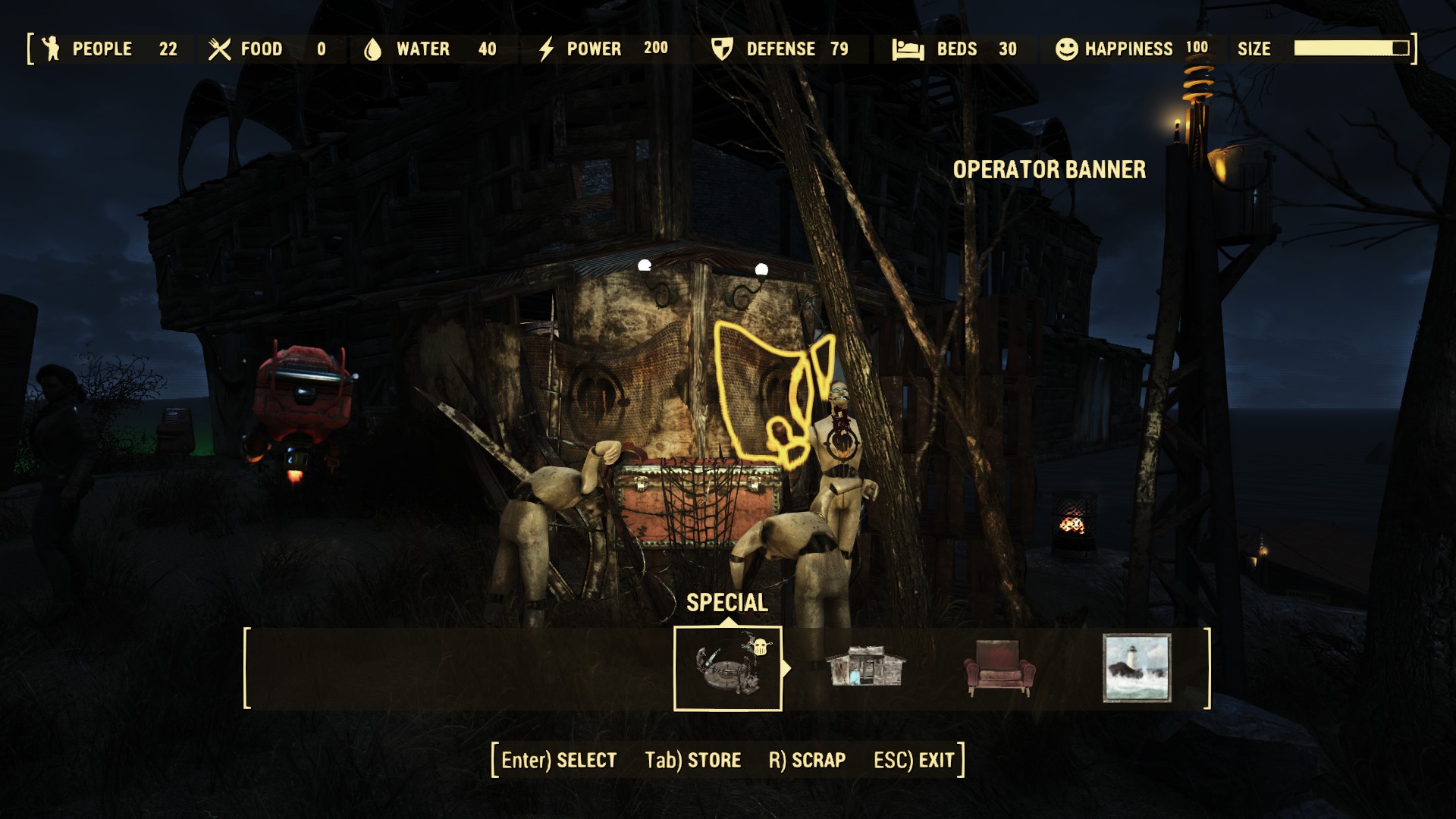
Just a Quick Tip that the Achievement "Benevolent Leader" in Fallout 4 can be achieved at a Raider Outpost (which are kind of like Settlements... but for Raiders... and they don't Farm... or like to Work at all... or do anything really... lol).


I have not been feeling well lately ['fighting something' heh], but I've been having fun playing Fallout 4 again, when I can. One of the many aspects I like about Fallout 4 is that, it is a game that I can play 'Slow' if I need to (Exploring, Scavenging, or listening to Diamond City Radio while Building Up some Settlements) or play it 'Fast' if I have the energy and/or feel a bit better (Questing, Fighting, Looting Enemies and cleaning out Locations), it's great; I love that I can play this game fast-and-hard like it was a "Just Cause" game or slow-and-sneaky like it was a "Hitman" game, heh.

Just the other day, I got my first-ever '100% Happiness Settlement' and Notification in the game - only it wasn't a Settlement per se - it was a Raider Outpost [Nuka-World DLC]! I was so surprised - I didn't even know those were eligible for that Achievement, woot! Thus, I wanted to share, both my Achievement/Celebration and the information that it can indeed be obtained with a Raider Outpost:


In my case, it was achieved at the Kingsport Lighthouse Settlement/Area, converted [taken over] into a Raider Outpost...

[Going to end this here, keeping it 'short and sweet', so that I can post more often (versus longer posts less often), if I can] 

GL to all those going for the achieve!

~T

Wednesday, May 09, 2018

Quick Tip: NVIDIA "Device Not Found" Issues Possibly Fixed In Latest Driver Update [Notification]

Recently, I have been running into an issue I hadn't seen since I last owned an NVIDIA videocard** - a "Device Not Found" error. Thankfully, this problem may be seen even less now, as a recent NVIDIA Video Driver Update, released just now, may fix this issue. If you have been running into a "Device Not Found" error, or the possibly-related "No DirectX 10 or 11 adapter or runtime found" error - with an NVIDIA GPU - grab the Driver Update and see if it makes a difference for you!


I've had a few of these occur the past while, although moreso the last time I owned an NVIDIA videocard**, this 'old issue' popping up again only recently, with GTAV (Grand Theft Auto 5: "No DirectX 10 or 11 adapter or runtime found") and off/on with Playclaw [doing some testing with it for a future 'comparison/shootout' of various game recording programs, I was running into "cannot start encoder for empty frame" and "device not found" errors]. To be fair, AMD GPU's also have similar issues [such as, one which states "The Device Has Restarted", usually after a game/screen 'freezing up' on your for a few seconds]. With NVIDIA releasing an Update today, that stated in the ChangeLog/PatchNotes that an issue of this type has now been 'fixed', hopefully we'll be seeing these errors even less:

The NVIDIA Driver Patch Notes, stating an issue has been fixed that may directly solve these problems.
Click to see Full Size

The actual 'fix' states that the "Driver may get removed after the PC has been left idle for an extended period of time". I say that this may be related to the issue(s) stated above, because I found that after leaving the system on all night, going to play a game the next day, I would often run into these issues/errors (moreso than if I had been continually using the system). These errors would pop up even if I had the GPU Power Saving settings on "High Performance" or "Always On" [I live in an apartment where electricity is included in the price of the rent, so I don't mind leaving the system on 'all night' to perform tasks (backups, video compression, etc)]. A simple Restart usually 'fixes' everything, no errors come up after that, no "Device Has Been Removed" or anything - that is, until I leave the system on 'all night' again... Then these types of errors show up, once I try to utilize the system in the morning. So, hopefully this latest Driver Update from NVIDIA solves, or at least reduces, these types of errors.


Example of one of the errors this Driver Update may possibly fix: "No DirectX 10 or 11 adapter or runtime found"
(Experienced with an NVIDIA GPU while trying to play/startup GTAV after not touching the PC for a long time, shown Full Size)


If you are running Windows 10 and an NVIDIA GPU, be sure to grab this latest Driver and see if it helps reduce their occurrence for you - I'll try to return to this post and let you know if it does/doesn't for me, too. GL!


[Note: I apologize, but I have misplaced/lost a few Example Screenshots of the errors stated herein. Ones showing the "Device Not Found/Ready" or "No DX3D Device Found" or "d3d11: failed to create device" and similar errors, all of which I have run into when trying to use the system after not interacting with it for a while, and took Screenshots of. I will continue to look for these as I can, and once I find them, I will add them into this posting.]


** Disclaimer and Personal Veracity Statement: Although I currently own an NVIDIA GPU, I have owned both AMD GPUs and NVIDIA GPUs in the past, and will do so in the future. I have no personal preference between the two, purchasing one or the other as Upgrades depending on my needs at the time and my financial limitations at the time I need to Upgrade. I have not, and will not, receive any compensation for mentioning either companies' products herein. I am merely an enthusiastic user (of both) and try to share helpful information about them, as I can.

Monday, November 27, 2017

Quick Tip: NVIDIA 'In Game Overlay' Stopped Working? Here's How To At Least Get It Going Again [Fix / Workaround That Might Work For Some, Updated 2018-04-26]


Whether it wants to be called Shadowplay, Share or [as of the time of this post] In-Game Overlay; it doesn't really matter to most people I think - we just look for something to record our gameplay once in a while, maybe take some Screenshots, 'and just work'. Thankfully, NVIDIA's In-Game Overlay [or whatever it may be called by the time I finish this post, heh] does just that. Most of the time.


Although I rotate between a handful of different recording programs off and on (such as Bandicam, Action, Playclaw and others - just for fun and also slowly working on another 'Game Recording Comparison' for the future), In-Game Overlay [built into the NVIDIA Drivers, aka "for free"] records when I want, it records a Buffered Loop (a timed, re-recording of 'the last xyz seconds', to save when needed) - and it even takes Screenshots and more. However, sometimes this big fella has just 'stopped working' lately. No saving Screenshots, no Recording, no Error Message, Nothing; and I wasn't sure why... After only a tiny bit of Troubleshooting, I quickly figured out how to at least 'get it going again' and I just wanted to share that here for you all, in a Quick Tip™.

To be honest [I always believe in being completely honest], I am still not sure why NVIDIA's In-Game Overlay stopped working - but I did figure out how to simply get it working again - and here's what I did:
  • Once I noticed the Overlay wasn't taking Screenshots, I looked to see if the Overlay itself or more of the (many) NVIDIA utilities were still running, in the Task Manager. They were. [The In Game Overlay's Executable is still called "NVIDIA Share.exe", btw]
  • Thinking that something might have gone wrong with the Overlay utility, I opened up NVIDIA's GeForce Experience.
  • In GFX [my accro.], I clicked on the 'gear' in the upper-right corner, "Settings".
  • In the Settings area, I clicked on the switch/toggle for In-Game Overlay.
  • Although it took longer than normal, it eventually turned Off. Clicking it again, it turned back On.
That's it! After those steps, the In-Game Overlay was working once again. Taking a Screenshot, for example, the notification from the Overlay came up, and the Screen was saved. It also started Recording again, without issue. Here is a 'Tutorial Image' of the steps to take:

Tutorial Image of what steps to take to 'restart' the NVIDIA In Game Overlay;
the recording utility built into the NVIDIA Drivers
(Click to see Full Size)


Although I do not have any details on why it failed, I still thought this short 'tip' would be helpful for people that might run into this ("shadowplay not recording" or "in-game overlay not taking screenshots", etc) - so I wanted to share it here. HTH!


...


Update, 2018-03-26: Just a quick Update, that as of March 2018, I have run into somewhat of an extension of this issue, where GFX is no longer responding to this simple 'toggle' of the In-Game Overlay... Doing so (which used to temporarily 'fix' the issue above), now merely results in an 'error' message box, stating "That Didn't Work. Try Restarting Your System.", which although polite, is not very informative as to what caused the error or what else can be attempted to isolate/troubleshoot the issue further:


Doing some more research online, I see many others running into this issue, as well as its' 'extension' here... However, there still is no absolute 'fix' for this problem yet [at least, none that is verifiable and repeatable, which I prefer to have as a qualification to my sharing it here as a "fix"] - therefore, I cannot say for certain what can be done to fix it, even though a wide range of things have somewhat worked for others (some early steps work, others must use further steps), such as:

  • Uninstalling/Reinstalling GeForce Experience
  • Installing an older version of GeForce Experience
  • Utilizing a third-party 'drivers uninstaller' to completely remove NVIDIA's GPU Drivers and Reinstall NVIDIA's GPU Drivers/GeForce Experience [AMD users can get a similar utility directly from AMD]
  • Reinstallation/Formatting of entire system (eg. Windows) and Reinstalling NVIDIA GPU Drivers and Reinstalling GeForce Experience

...


Update, 2018-04-26: Just another Update, that as of April 2018, I was looking at this issue once again [since it still occurs, where InGameOverlay/Share just 'stops working' randomly (for no apparent reason)] and found that NVIDIA has this exact symptom listed as an "Open Issue (Windows 10)" in their Driver Updates now (Change Log / Release Notes); which basically means it is 'a known issue', but that they do not have a fix/patch at this time. This was found in the Release Notes for NVIDIA GPU Driver version 397.31, found here:

(USA Source of NVIDIA GPU Drivers, Release Notes)


As you can see, under the Windows 10 Section, it lists this very problem as an Open Issue. Good Luck, NVIDIA - I hope you find a solution someday!

Excerpt of the Driver Release Notes, showing this problem as an 'open issue'
Click to see Full Size

Again, once I find out what actually is a solid fix for this issue, I will state so here and post it in big, bold lettering [lol], along with a Tutorial Image (text on an example image of the solution, etc). Until then...


Sunday, September 24, 2017

Battlefield 1 - DirectX Error "GetDeviceRemovedReason" [Workaround]


At first, because of the phrasing of the error, I thought it might be Hardware, namely my GPU (Graphics Processing Unit, the Videocard); but since that was working fine with literally, all other games - playing in longer gaming sessions even [and I know for sure that I wasn't actually physically pulling out my videocard while playing ...I think] - I omitted that possibility (for now) and focused on a potential Software approach, which meant checking configuration...

Looking at the Settings for the game then, I tried reducing everything down to the Lowest Possible Settings; to reduce the load on the GPU and the load in the processing of the game itself. (With lowered settings, there would be less data being streamed from the game, less being extracted from the compressed/encrypted files of the game, less being calculated and drawn, less everything). If there was a problem with how game data was being handled, this might being it to light [note: an issue with integrity of the files would not be detected this way, this is more of a data handling troubleshooting step; integrity of the game files can usually be checked/verified with a Repair/Verify through the game client or if that doesn't help, a Reinstall of the game usually assures accurate game files (barring Drive/RAM file handling (Hardware) issues - which is another tangent/issue altogether, heh) - screenshot of where to run a Repair/Verify of the game files for BF1, below].

Example of the Location of where to Repair the game files in the Origin Game Client, showing Battlefield 1 in 2017
(Click to see Full Size)


Nope. Crash. Error [which I lost the clean Screenshot of, of course - but a version of it is in the Header for this posting - I will add a clear Screenshot of the error window to this post when I can capture it again, if it occurs]. Hmmm.... Since it was a DirectX error (and I am 93.33-repeating-percent-sure that I did not "remove the video card" while playing..), I tried one last thing. Instead of swapping out the GPU to try with something else (a GPU from a friend's PC, for example), which is approaching a Hardware type issue; I tried something else: I changed the DirectX level in the game from DirectX 12 to DirectX11 [this may not have been solely 'my idea' - although I am sure I would have eventually arrived at it as a troubleshooting step, I looked up this error and found many, many locations and sources of others stating they have this issue and encountered this error and I may have read it somewhere, for it to have come up - merely mentioning because I just don't want to take sole credit for something I may not have come up with entirely by myself...].

Example of where to 'Disable DirectX 12' and 'Enable DirectX 11' in the Video Settings, in Battlefield 1
[Hmm, this is more of a Workaround than a 'Fix' for this issue...]
(Click to see Full Size)

Success! I played a good couple of hours this way, with no crashing, closing, freezing, or errors at all - great! After trying it after re-opening the game, rebooting and playing some more, testing it the next day or two after as well, it seemed 'solidified'; changing the DirectX level/version from 12 to 11 seemed to 'solve' the issue [for me, for now].

I think this is more of a 'Workaround' than a 'Fix', since it doesn't solve the issue permanently... there is still something in the game engine or how it communicates with DirectX/Windows/theGPU, which is causing something that is not 'fixed' by this step; but, since it does work to get past the issue, I thought I would share, to help others that may be running into this seemingly-popular problem ('popular' judging from the queries I found about this issue on both the Battlelog forum and EA Support Forums, spanning a few years now..). I hope this works for you, dear reader, as it seems to have done, for me.


[Since this is not a true 'fix' (I do not know if this is permanent nor do I know the actual source/nature of the issue, therefore I cannot say this is a 'fix', imo); I will post this with the title "workaround"...]


Addendum:
Other helpful tips/steps that can possibly help, if the above step does not work (and some additional information), can be found in multiple places on the Battlefield and EA forums, such as this list by a helpful poster named STEEiL:

Monday, June 26, 2017

Quick Tip: Fallout 4 - Playing Making You Dizzy? Try adjusting the Field Of View [Tutorial with Explanation]

[Currently, this post is in Text-Only Mode, to speed up the ability to publish it. 
I may return to add some Screenshots and a Video/GIF 'tutorial' for it, sharing it on Twitter after that...Soon™]


I'm having a lot of fun playing Fallout 4 lately - but like many other people (if perusing game forums [forii?] is any indication), this game is one of a handful of games that can produce "Motion Sickness" for me - resulting in dizzyness or a sense of vertigo (a sense that 'the room is moving'). Although since playing Fallout 3 and Oblivion, I have gotten into the habit of changing the FOV (Field Of View) in Bethesda games when I play them, it's not just theirs that cause this issue for me, as it also occurs in many Shooters and Racing games, from Unreal Tournament to Flatout and other games.

Before I ramble on about the mechanics of it in Fallout and get into why this happens to some people in some games (it doesn't happen to everyone and not in all games), I'll give the Quick Tip of the steps on how to change the Field Of View, in Fallout 4:

  • With the game running, hit Tilde ("~", the key usually to the left of the number "1" on QWERTY keyboards), which brings up the Command Console.
  • Type "fov 90 90" (without the quotation marks) into the Console and hit Enter.
    You should see the Field Of View adjusted dynamically (updated right away in your view).
  • Hit the Tilde key again, to close the Command Console.

That's it!

Adjust the FOV range as desired - if you need it to be 'less' (and more like the original FOV), or making it 'higher' (if you want more FOV to feel better for you personally, or more to be seen on the screen at once, on purpose (for Screenshots,etc)).

Monday, June 19, 2017

Quick Tip: Fallout 4 - TAB Key Stopped Working And Not Bringing Up The Pip-Boy? Here's A Possible Fix [Text-Only]

I have been having a ton of fun playing Fallout 4 lately [again, building up my Settlements too much and ignoring the Main Storyline!] and ran into a 'small-but-game-stopping' issue where the TAB key appeared to stop working. "Hitting TAB wasn't bringing up the Pip-Boy anymore..??"

After doing some Troubleshooting and paying attention to what I was doing and pressing... it turned out to be a very simple issue - the TAB key was 'locked' out because of how I had used it in the Console.. Let me explain briefly:

Wednesday, April 26, 2017

Quick Tip: Heroes Of The Storm 2.0 - Where To Choose Skins, Mounts, Announcers And More [Interface Change]


Yesterday, Heroes Of The Storm "Version 2.0" came out - and along with it a bunch of changes and additions, breathing some new air into Blizzard's MOBA entry. I have been having fun playing it off and on, discovering the changes and new progression system. I am working on a First Impressions/Overview of '2.0' - but before that, I wanted to quickly make a Tip about something I am seeing a lot in the General Chat in HOTS: people asking how to change the Announcers, Mounts, Skins and other new additions, as the new UI has changed things a bit...

In 2.0, right away you will see that things have changed, as the Main Menus themselves have moved around and information is in different places. For example, the Shop link/text at the top of the screen is gone:


Here is where the Skins, Mounts, Announcers, etc can be located now:

The Loadout button (first one on the bottom, far left) has combined the "Heroes" and "Mounts" buttons and now holds all of the settings for the currently selected Hero. Here, you can choose the Skin, Mount, Announcer used and other new additions via the sections within the Loadout (you can even save Presets of combinations you like). 

Here is a 60-second tutorial showing where it all is, in Heroes Of The Storm 2.0:


That's it for this Quick Tip - it was just something fast because I have seen it asked a lot in the General Chat lobby lately - have fun in Heroes 2.0!

Thursday, November 12, 2015

Quick Tip: 'Fake' Blizzard E-mail Going Around (That Is Actually 'Real')... [Notification]


Although many of you may be able to recognize a "fake" or "scam" e-mail that is not from a company that it 'pretends to be', senders of these types of spam letters ('fishing' for your account information or credit card information, called "Phishing") are getting better and better at it - and it is getting harder and harder to recognize these fake e-mails for many people. However, I wished to speedily created this Quick Tip, to inform others that there is another 'fake e-mail' going around very recently - but this one may actually from Blizzard Entertainment...


Above, is an example of the 'fake e-mail' [with MOAR FLAREZ], that purports to be "from Blizzard Entertainment" - one that I just received myself - and although just seeing this e-mail may immediately scare off most recipients [which is not a 'bad thing' in regards to unknown email], this one may in fact be an actual, informative, notification from Blizzard.

Many are already asking on the Official World Of Warcraft Forums if this e-mail is 'real or not', and according to a Blizzard Representative, there may indeed be some 'house cleaning' going on, for aging accounts - to be more specific, ones that do not have either any full-version (non-Trial) retail games on them, or ones that have not been utilized for a very long period of time. One such related post, by such a representative, is below:


So, there may in fact be some very old, or very unused accounts being notified recently that their accounts may be purged soon. However, since these types of e-mails are mostly [as in 96.333% and up] NOT from Blizzard and are merely "phishing" attempts at getting your account and/or credit card information, some Tips are in order [in my opinion].

Two easy tips that I can give immediately are:
  • Do NOT click on any links, images, buttons or anything else interactive within the e-mail
  • Instead, close/delete the email and go directly to Blizzard.com or Battle.net, by typing in the address yourself, directly into your web browser and access/update your Account from there

By simply using the above two tips, the chances of you going to any 'fake sites' or being 'scammed' is immediately reduced to a much, much lower possibility.

Of course, other measures can be taken; such as deleting the e-mail, not opening it initially (after only seeing the Subject in your Inbox) and obtaining an account Authenticator from Blizzard for your account.


Regardless of the steps you wish you take, I wanted to quickly put this up here, as this is a very recent email distribution [and one that I received myself regarding an old Trial account I had forgotten about], in order to help others... 

Be careful out there, always investigate, if in doubt - and See You In The Game!


Monday, July 06, 2015

Quick Tip: Bandicam Releases CFR-capable Recording Update (for Importing into Vegas, Premiere, Lightworks, etc) [Notice of Update]


Just a Quick Tip for people having problems editing their recordings in Sony's Vegas, Adobe's Premiere, or Editshare's Lightworks, Canopus' Edius and other similar Non-Linear Editors:
Bandicam has released an Update to their software today, that allows the choice of either VFR (Variable Frame Rate) recording [Shadowplay's Default, for example] or CFR (Constant Frame Rate) recording - which is much more compatible for importing into these video editing applications, when recording with NVENC, AMDAPP or QuickSync codecs.


For a number of years now, people have been having issues with importing videos into Vegas or Premiere (to use these as an example, as two of the more common consumer editors) - mainly because many recording applications/settings use, by Default, VFR recording (Nvidia's Shadowplay, for example). As many people have already found, this can cause a multitude of problems, when trying to import these recordings into some of the video editing programs mentioned above. Problems such as:


and other issues...

An example of one issue that can arise with VFR and some Video Editors is, 'trails' or corruption of some type; where the differences between the frames is displayed erroneously, as seen in the still-frame/screenshot just below:


While these issues are a combination of the strictness of the video editing applications and the settings that the codec is using in a recording application, these may now all be alleviated, with the latest update to the game recording program Bandicam, if they are occurring:

The Bandicam interface after the recent update, showing the Steps ("I. II. III.") for enabling CFR, which increases import compatibility with video editing applications such as Vegas, Premiere, Lightworks and more (MP4 container, GPU-accelerated H.264/AVC via the AMDAPP codec, 60fps format/settings shown as example). Click to see Full Size


Today, after updating to the latest version of Bandicam, there can be seen the option to choose either VFR (the Default for Shadowplay and many other recording applications, including Bandicam - which is more efficient for compression, but can result in problems when importing into Vegas/Premiere/etc) or CFR (which is less efficient for compression, but can alleviate the problems with importing into Vegas/Premiere/etc).

For those wanting to use NVENC, AMDAPP or QuickSync to record, for example (GPU-accelerated recording capabilities), this will allow increased importing into these editors, without the need to 're-compress' the videos into a more compatible video format (for example, adding the extra step of using Handbrake to convert the videos into CFR, making the videos importable into Vegas/Premiere/Lightworks/etc, as I wrote about here, when talking about Shadowplay). 

(As another example, if you used Plays.TV's client to record with (which can also use buffered and GPU-accelerated recording), you may have noticed audio/video desynchronization occurring, when attempting to import your recordings into video editing programs - as Plays.Tv's Support Area talks about here, it is due to the usage of VFR)


As a quick Test, I captured my Desktop in a short recording (using Bandicam with the new CFR setting), then tried to import that into Vegas, to see if the video and audio were indeed importable without problems, as a trial of this new compatibility setting.....

A short test of the CFR setting in Bandicam (Desktop portion, short recording, imported into Sony Vegas Movie Studio Platinum 13, playing back within Vegas, output converted into GIF with Honeycam).
Click to see Larger Size

It worked great! The recording was not only imported into Vegas without complaint, it was faster (more responsive) in editing/shuttling/scrolling through the video, due to the CFR setting.

[This was with the AMDAPP (AMD GPU-accelerated) codec, in the MP4 container, using the CFR setting. This codec setup within Bandicam utilizes AAC audio as well and I would use it mainly when editing with Sony's Vegas line of video editing products, as it seems to import without issue. If I were to switch to other codecs or the AVI container, they may then not be as easily imported into NLEs such as Vegas, so I would then use something else, such as CyberLink's PowerDirector (for example), which is far less 'fussy' when it comes to codecs and formats, for importing]


VFR (Variable Frame Rate) helps increase possible compression by reducing the number of frames in a group ('groups of frames utilized per second' in the file) - literally reducing the number of frames used in a file - when less is changing/occurring onscreen. CFR (Constant Frame Rate) will increase file size moderately, due to the fact there is no longer the reduction of the number of frames in a group useable as a factor in compressing the video further - when 60fps is set as a FrameRate, it will literally write sixty frames every second into the video file, regardless of how much has changed onscreen. BitRate is still the major factor in how large the video will be, however. Also note, that this setting is independent of the "fps" (Frames Per Second) displayed output.
[TLDR: CFR will create larger files than VFR because it cannot compress the video as much, but not excessively large, as BitRate is still the main factor in video compression/sizes - and both of these do not affect "frames per second" output onscreen]


Hopefully, this new capability will alleviate the problems with importing your game recording experiences into your favourite video editing application. Try it out, have fun with it - and See You In The Game!


 N.B.: 

I discovered when editing recordings with NLEs (Non-Linear Editors) such as Vegas, Lightworks, Premiere, et al. you may need to utilize a GOP (Group Of Pictures) of "1" for editing compatibility... 

Usually, with MPEG-based video data, there are set intervals of "Keyframes". 
Keyframes are 'stand-alone' images, where all the picture data is kept within one frame (it is not dependent on surrounding frames in the file). Video editing applications use these Keyframes to begin/cut edits from. If there is a large GOP (with many frames in-between these Keyframes), the video editing program must 'key off' of these frames, rebuilding the GOP within the program, causing slowdown in edit processing and possibly causing visible corruption ('trails' or 'glitchy' output). 
Setting a Keyframe Interval of "1" makes every frame in the video a Keyframe, eliminating the possibility of this issue. 

I have written a couple of articles on this, here at the blog,
http://gametipsandmore.blogspot.ca/2013/06/and-more-how-to-record-with.html
http://gametipsandmore.blogspot.ca/2013/05/game-recording-with-mpeg-4-using.html
and submitted this occurrence to Bandisoft, the development house of Bandicam. I am proud to state that this led to the inclusion of a Keyframe Interval option within Bandicam. 

This setting may still be required for full compatibility with Non-Linear Editors. 

Although a GOP of 1 takes away most of the 'headroom' to work with video compression (the video file sizes will increase as it does not have the inter-frame dependency), if you are having issues with importing your videos into these types of video editing applications, even with this new CFR setting, try configuring the Keyframe Interval to "1" [you can also use PCM ("Uncompressed") audio to increase audio compatibility] and this should assist with issues with importing your recordings into these editors. 

Good luck with it!

Sunday, December 07, 2014

And More, Quick Tip: HitFilm Effects 'Stop Working' or 'Not Working When Reopening Projects' in Sony Vegas 13

Just a Quick Tip, for those using Sony's Vegas line of products for editing. I was working in a recently-upgraded-to Movie Studio 13 Platinum, enjoying the new version and trying the FXHOME HitFilm Effects plug-ins that come with it. Then, the plug-in effects seemed to stop working today - they didn't show the effects in the Preview at all when I re-opened the Project. I could open the Settings Panel for the plug-ins and change them, but could not 'see' the HitFilm effects. I made a few recent changes to my System, one of them being upgrading my NVIDIA GPU drivers. So, I rolled them back, installing an older version (going back to 332.21 - a version I chose so that I could also use CUDA for Rendering, among other things) and boom - the Hitfilm effects were back ...to the future ...with a vengeance ok I'll stop. So, if anyone else runs into this problem with these HitFilm Effects and Vegas [it may help no matter what Edition you have installed], try rolling back the GPU drivers.


[N.B.: This issue was encountered and solved on my NVIDIA GPU,
it is unknown by myself, at this time, whether this issue exists with AMD/ATi GPUs]

Have fun editing your gameplay adventures - and See You In The Games!


Wednesday, August 06, 2014

Quick Tip: The Sims 3 - Game Recording Is Slightly Darker Than The 'Normal' Colours Of Regular Gameplay [FIX]

Just a Quick Tip for those of you recording The Sims 3 and finding that your videos are looking 'darker' than the original gameplay itself - a problem that has been around for some people for over a year now... It's not that the game isn't recordable (although for some people they got nothing but 'blank/black screens' a few years ago) it's that the recordings are coming out, what looks like, a few shades darker than what the game really is.
I was recently seeing a spike in the number of people talking about this problem again and decided to see if I could find a fix, or at least a workaround, for it; and what I found was something that everyone can do for now (at least until AMD/NVIDIA or Maxis/EA makes an update that fully fixes the issue) and that is simply: to run The Sims 3 in Windowed Mode.

Whether you are using Dxtory, Bandicam, Afterburner or most other game recording programs (even NVIDIA's Shadowplay has the same issue for some people), the fix [more of a workaround] that I found for now at least allows you to record your Sims 3 gameplay with proper colours, as you can see in these frames extracted from a couple of game recordings, below:

Comparison between the display modes and the colours when recording (Darker vs. 'Normal') for the recording issue with The Sims 3, showing that the workaround works [at least for now] in two extracted frames from two game recordings (one in Windowed Mode and one in Fullscreen Mode). [In the right half, the camera has been 'zoomed in']


Have fun recording your Sims 3 gameplay once again, if this problem has made you stop - and
See You In The Games!


Monday, May 26, 2014

Reminder: Diablo II - 2014 Ladder Reset is May 27th


That's right, this is just a quick reminder that tomorrow is the Diablo 2 Ladder Reset for 2014!
So get ready - stock up on energy drink and tell your friends you won't see them much for the next while - and get on that Ladder! Have fun playing, my wonderful readers - and enjoy being on the Top Of The Heap
(at least until the botters get going)

See You In The Games!

Monday, December 16, 2013

Quick Tip: Team Fortress 2 - What To Do With Those Naughty and Nice Winter Crates (Winter 2013)


By now, most of you have seen these Random Drops, Crates that are either "Nice" or "Naughty" - but, "How do you open them..", you may have asked? Well, this post is just a quick note to answer this question I have already started seeing on game forums and Question/Answer websites. Answer: You Can't Open Them (Yet)...

Soon hopefully, keys should be available for purchase at the Mann Company Store (Steam/Valve/TF2), most likely for $2.49 USD, if keys and dropped crates combinations of the past are anything to go by [I assume they are dropping them now, to allow people to collect some before the keys go on sale - to sell more keys]. So, if you get these [I have already started getting them when playing, hence the screencaps], just wait a little bit longer, until the keys themselves go on sale. Then, if you want to open them, just purchase keys and unlock them! Soon™... (Remember, you will need one key for each crate)


See You In The Games!